Virtual Piano (Workstation) — User Manual
What is the Virtual Piano Workstation?
The STEAG STUDIO PRO-88 is a full virtual workstation that runs in your browser — a 16-voice synthesizer and sampler with 94 patches across pianos, organs, strings, brass, winds, bass, guitar, synths, bells, voices and world instruments, a scale and chord assistant, a drum-style arranger, quarter-tone maqam tuning and per-note microtuning, a recorder, and real MIDI keyboard input. The keybed spans C2 to C6 and you can play it with the mouse, a touchscreen, your computer keyboard or a MIDI controller.
The console is laid out as twelve numbered modules. This manual walks through them in order.
Quick start
- Open the Piano from the sidebar.
- Sign in with your Google account when the page asks — every Mazmazika tool is free, but it needs a sign-in.
- Click any key once so the browser allows audio, then play with the mouse or with A S D F G H J K L ;.
- Pick a different sound in Instrument, or press Play in the transport to hear what you just recorded.
The console at a glance
Along the top sits the LCD, the transport and the master section; below them the Instrument bank with its patch pane, and 01 Perform beside the keybed.
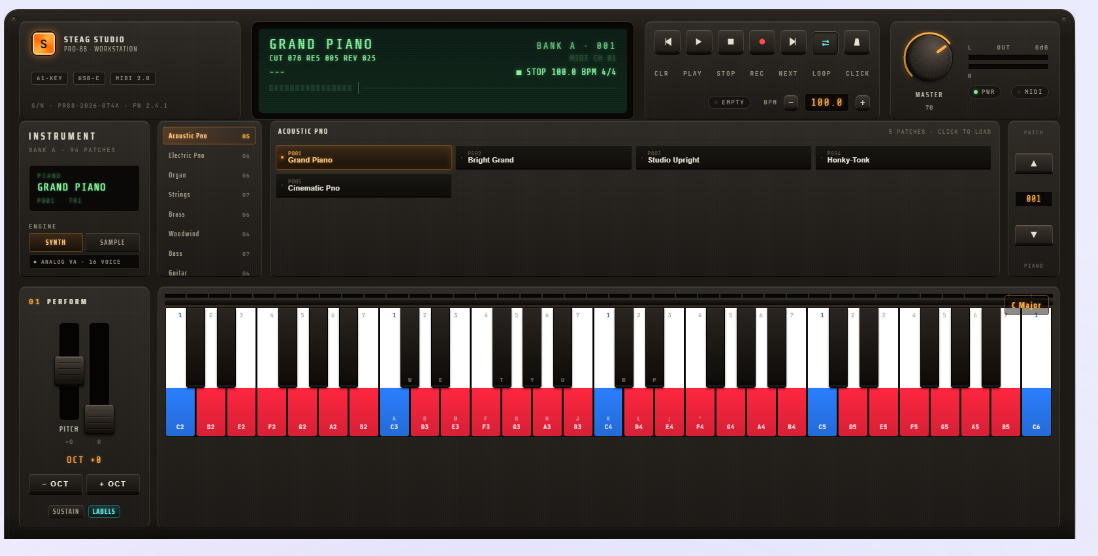
| Module | What it does |
|---|---|
| Instrument | Choose the sound: 14 categories, 94 patches, synth or sampled engine |
| 01 Perform | Pitch and mod faders, octave shift, sustain, key labels |
| 02 Key · Harmony | Root and scale, key highlighting on the keybed |
| 03 Chord Pads | The seven chords of the current scale, and a piano-roll view |
| 04 Oscillators | Waveform, voice mode, sub, detune, drive |
| 05 Filter | Filter type, cutoff, resonance, envelope amount |
| 06 Envelope | Attack, decay, sustain, release |
| 07 LFO · FX | Modulation shape and rate, reverb, delay, chorus |
| 08 Styles · Drum Pads | Rhythm styles, a step pattern and sixteen drum pads |
| 09 Tuning · Maqam | Quarter-tone maqam presets (Rast, Bayati, Saba…) |
| 10 Microtuning | Fine tuning per note, in cents |
| 11 MIDI Input | Connect a hardware MIDI keyboard |
| 12 Studio · I/O | Keyboard layout, recording export and import |
Playing with your computer keyboard
You can play the whole keybed without touching the mouse. The hint line under the console spells the mapping out:
- A S D F G H J K L ; — the white keys.
- W E T Y U O P — the sharps (the black keys above them).
- Z / X — shift the keybed down or up an octave.
- SPACE — start or stop playback of a recording.
Switch LABELS on in 01 Perform to print those letters on the keys. Note that space is the transport here, not the sustain pedal — sustain is the SUSTAIN toggle in the same module.
Knobs are dragged rather than clicked: press on one and move the mouse vertically. The same goes for the faders and the microtuning sliders.
Instrument: choosing your sound
The Instrument module holds Bank A with its 94 patches. The green readout names the category, the patch and its number (for example PIANO / GRAND PIANO / P001).
- Engine — SYNTH plays the built-in 16-voice virtual-analog synthesizer, so the Oscillator, Filter, Envelope and LFO modules shape the sound. SAMPLE plays recorded instruments instead.
- Category list — Acoustic Pno, Electric Pno, Organ, Strings, Brass, Woodwind, Bass, Guitar, Synth Lead, Synth Pad, Bell / Mallet, Voice / Choir, World, and FX · Atmos. The number beside each is how many patches it holds; scroll the list to reach the ones further down.
- Patch pane — click a patch to load it. The header tells you how many the category has.
- Patch ▲ / ▼ — step through the patches of the current category one at a time.
01 Perform
- Pitch — the left fader bends the pitch up and down; it springs back to centre.
- Mod — the right fader adds modulation depth and stays where you leave it.
- − OCT / + OCT — move the keybed by an octave. The readout above shows the offset (
OCT +0at the default). - SUSTAIN — hold notes after you let the keys go, like a sustain pedal.
- LABELS — print the computer-keyboard letters on the keys.
02 Key · Harmony
This module picks a key and marks it on the keybed, so you can see at a glance which notes belong.
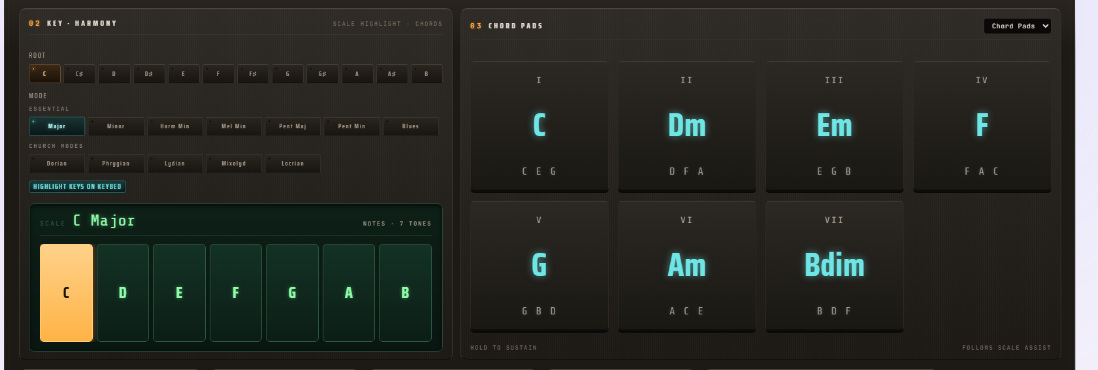
- Root — the note the scale starts on, C to B.
- Mode — a long list in six groups. Essential (Major, Minor, Harmonic and Melodic Minor, the two pentatonics, Blues) and Church Modes (Dorian, Phrygian, Lydian, Mixolydian, Locrian) are visible straight away; scroll the list for Jazz & Modal, Symmetric, Pentatonic & East Asia and World & Exotic — well over eighty scales in all, from Bebop Dominant and Whole Tone to Hirajoshi, Byzantine, Persian and Hungarian Minor.
- Highlight keys on keybed — colour the scale on the keys. The root lights up blue and the other scale tones red; notes outside the scale stay plain.
Under the controls a readout names the current scale and lists its notes, with the number of tones — handy for the scales that have five, six or eight rather than seven.
03 Chord Pads
The pads play the seven diatonic chords of whatever scale you chose, numbered by degree I to VII. Each pad shows the chord name and the notes in it, so C Major gives you C, Dm, Em, F, G, Am and Bdim. Click or tap a pad to hear the chord on the current patch; hold it to let the chord ring. Change the root or mode above and the pads follow at once — a quick way to sketch a progression.
The selector in the corner switches the panel between Chord Pads and a Piano Roll view.
The synth section: 04 to 07
These four modules shape the sound of the SYNTH engine. They are the reason a patch can go from a soft pad to a sharp lead without changing instrument.
04 Oscillators
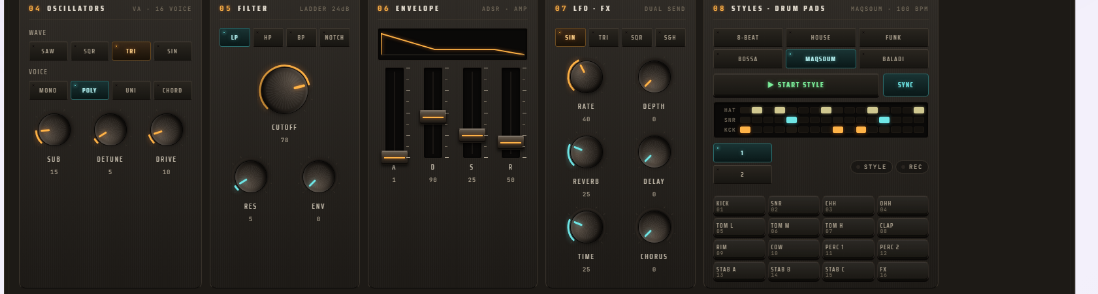
- Wave — SAW (bright and buzzy), SQR (hollow), TRI (soft) or SIN (a pure tone).
- Voice — MONO plays one note at a time, POLY plays chords, UNI stacks the voices on one note for a fat sound, CHORD plays a whole chord from a single key.
- Sub — adds an octave below for weight. Detune pulls the voices slightly apart, which thickens the tone. Drive adds warmth and edge.
05 Filter
- Type — LP keeps the low end and shaves off the top, HP does the opposite, BP keeps a band in the middle, NOTCH cuts one out.
- Cutoff — where the filter starts working; the single biggest change you can make to a sound.
- Res — emphasises the cutoff point and gives that vocal, squelchy edge. Env lets the envelope sweep the cutoff as the note plays.
06 Envelope
The classic ADSR shape of each note, drawn above the faders:
- A (attack) — how fast the note comes in. Low for a piano, high for a pad that swells.
- D (decay) — how quickly it falls back after the attack.
- S (sustain) — the level it holds while you keep the key down.
- R (release) — how long it rings after you let go.
07 LFO · FX
- Shape — the modulation waveform: SIN, TRI, SQR or S&H (random steps). Rate sets its speed and Depth how much it moves.
- Reverb — room and space around the sound. Delay adds echoes and Time sets how far apart they fall. Chorus widens and shimmers.
08 Styles · Drum Pads
The arranger plays a drum pattern under your hands. Pick a style — 8-Beat, House, Funk, Bossa, Maqsoum or Baladi — and press Start Style. The header shows the style and its tempo, and Sync locks it to the transport BPM.
- The step lanes — three rows of steps for hat, snare and kick. Click a step to switch it on or off and the pattern changes as it plays.
- Style / Rec — the two small buttons beside the lanes, for choosing the variation and for capturing a pattern you tap in.
- The sixteen pads — Kick, Snare, closed and open hi-hat, three toms, Clap, Rim, Cowbell, two percussion voices, three stabs and an FX hit. Click a pad to play it, and use them over a running style to fill.
09 Tuning · Maqam
Arabic and Turkish music uses notes that sit between the keys of a Western piano, so this module retunes the whole keybed to a maqam.
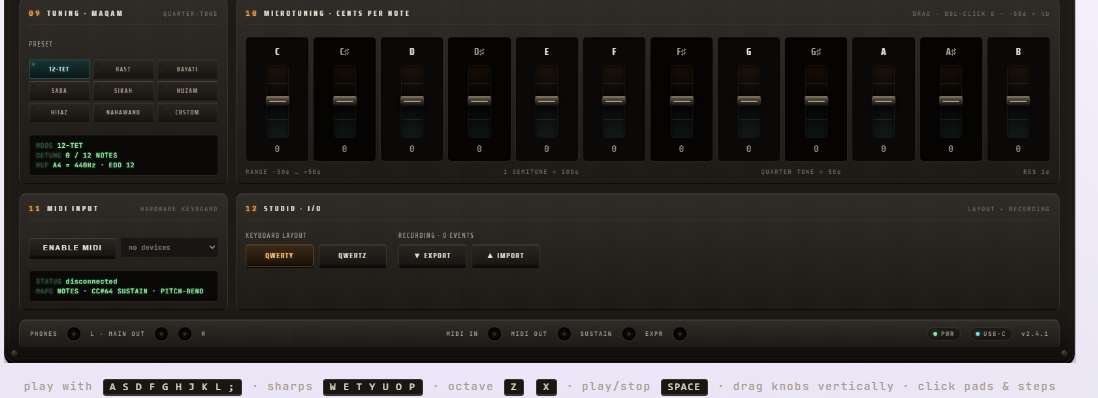
- 12-TET — ordinary equal temperament, the setting a Western piano uses. This is the default.
- Rast, Bayati, Saba, Sikah, Huzam, Hijaz, Nahawand — maqam presets. They lower or raise particular notes by a quarter tone so the scale sounds right rather than merely close.
- Custom — your own tuning, set note by note in the next module.
The readout underneath names the mode, how many of the twelve notes are detuned, and the reference pitch (A4 = 440 Hz).
10 Microtuning
Here you tune each of the twelve notes by hand, in cents. Drag a slider to move that note; double-click it to return it to zero.
- The range is −50 to +50 cents per note, at a resolution of one cent.
- A semitone is 100 cents, so 50 cents is a quarter tone — the half-flat used across Arabic maqamat.
- Choosing a maqam preset above fills these sliders in for you; nudging one afterwards puts the tuning into Custom.
11 MIDI Input
For the most natural feel, play from a real keyboard:
- Plug the MIDI keyboard into your computer.
- Open the piano in Chrome or Edge — these support Web MIDI.
- Press Enable MIDI and allow the browser's MIDI prompt.
- Pick your keyboard from the device list beside it.
The status line shows whether it is connected and what comes through: notes, CC#64 sustain (your hardware pedal) and pitch-bend. Keys you play inside the C2–C6 range light up on screen.
12 Studio · I/O
- Keyboard layout — QWERTY or QWERTZ, so the printed labels match the laptop in front of you. The keys play the same notes either way; only the labels change.
- Recording — the line shows how many events you have captured so far.
- Export — save the take to a file.
- Import — load a take you saved earlier and play it back.
The connector strip along the bottom — phones, main out, MIDI in and out, sustain, expression — is part of the instrument's front-panel look rather than something to click.
Recording what you play
The transport at the top of the console captures your performance:
- REC — start recording. The LCD counts along and the lamp beside the transport stops reading EMPTY.
- PLAY — play the take back. SPACE does the same from the keyboard.
- STOP — stop recording or playback.
- LOOP — repeat the take instead of stopping at the end.
- CLR — clear the take and start over.
- NEXT — step on to the next take.
- CLICK — a metronome click while you record; the BPM field beside it sets the tempo.
Use Export in 12 Studio · I/O to keep a take, and Import to bring it back later.
The LCD and the master section
The green display names the loaded patch and its bank and number, echoes the main synth values (cutoff, resonance, reverb), shows the MIDI channel, and reports the transport state with the tempo and time signature. On the right, the Master knob sets the overall level and the L / R meters show how loud you are playing; the PWR and MIDI lamps light when the engine is running and when MIDI is connected.
Tips
- Turn LABELS on while you are learning the computer-keyboard mapping.
- Set a key first. With Key · Harmony highlighting the scale, improvising on the coloured keys keeps you in tune with yourself.
- Sketch with the chord pads, then play a melody over them on the keybed.
- Start a style and play along — it is the fastest way to make an idea sound finished.
- For maqam, pick the preset before you play. Choosing Rast or Bayati retunes the keys, so the same fingering gives you the right notes.
- Export short takes so a good idea does not disappear when you close the tab.
Troubleshooting
- No sound? Click a key once first — browsers only start audio after you interact. Then check the Master knob and your device volume.
- The knobs won't turn. They respond to a vertical drag, not a click: press and pull up or down.
- The synth modules do nothing. Oscillators, Filter, Envelope and LFO shape the SYNTH engine — switch Engine away from SAMPLE.
- MIDI keyboard not detected? Use Chrome or Edge, press Enable MIDI and allow the permission. Other browsers may not support Web MIDI.
- Key labels don't match my keyboard. Switch the layout between QWERTY and QWERTZ in 12 Studio · I/O.
- Space doesn't hold notes. Space is play/stop on this console. For sustain, use the SUSTAIN toggle in 01 Perform.
- Everything sounds slightly out of tune. Check 09 Tuning · Maqam — a maqam preset or a stray microtuning slider will do that. 12-TET puts it back.
- Export didn't work. Some in-app browsers block downloads — try an ordinary Chrome or Edge window.
- It asks me to sign in. Mazmazika's tools need a free account — press Sign in with Google and you carry on where you left off.
Related tools
Training your ear? Pair the piano with Ear Training. Looking up a shape rather than playing it? Scales & Chords draws and sounds any one of them. Writing music down? The Notes Editor has its own on-screen piano for note entry.