MIDI Piano Visualizer Library — User Manual
What is the MIDI Piano Visualizer Library?
The MIDI Piano Visualizer Library is the catalogue behind the Piano Visualizer: 575 curated MIDI songs you can browse, search and open on the falling-notes piano. Every piece is a real MIDI file that somebody has already prepared, so nothing is transcribed, nothing is guessed, and the notes you see are the notes as written.
The same catalogue is reachable from inside the Audio & MIDI Piano Visualizer under its Curated Library tab. The difference is what each is for: the tab is a quick picker for when you are already working, while this page is built for looking around — a full grid with category filters, sorting, and a page of its own for every song that you can bookmark or send to somebody.
Browsing is completely free and needs no account. You only sign in at the moment you open a piece on the visualizer.
Browsing the catalogue
Open MIDI Piano Visualizer Library from the left sidebar — it sits directly under the Piano Visualizer itself.
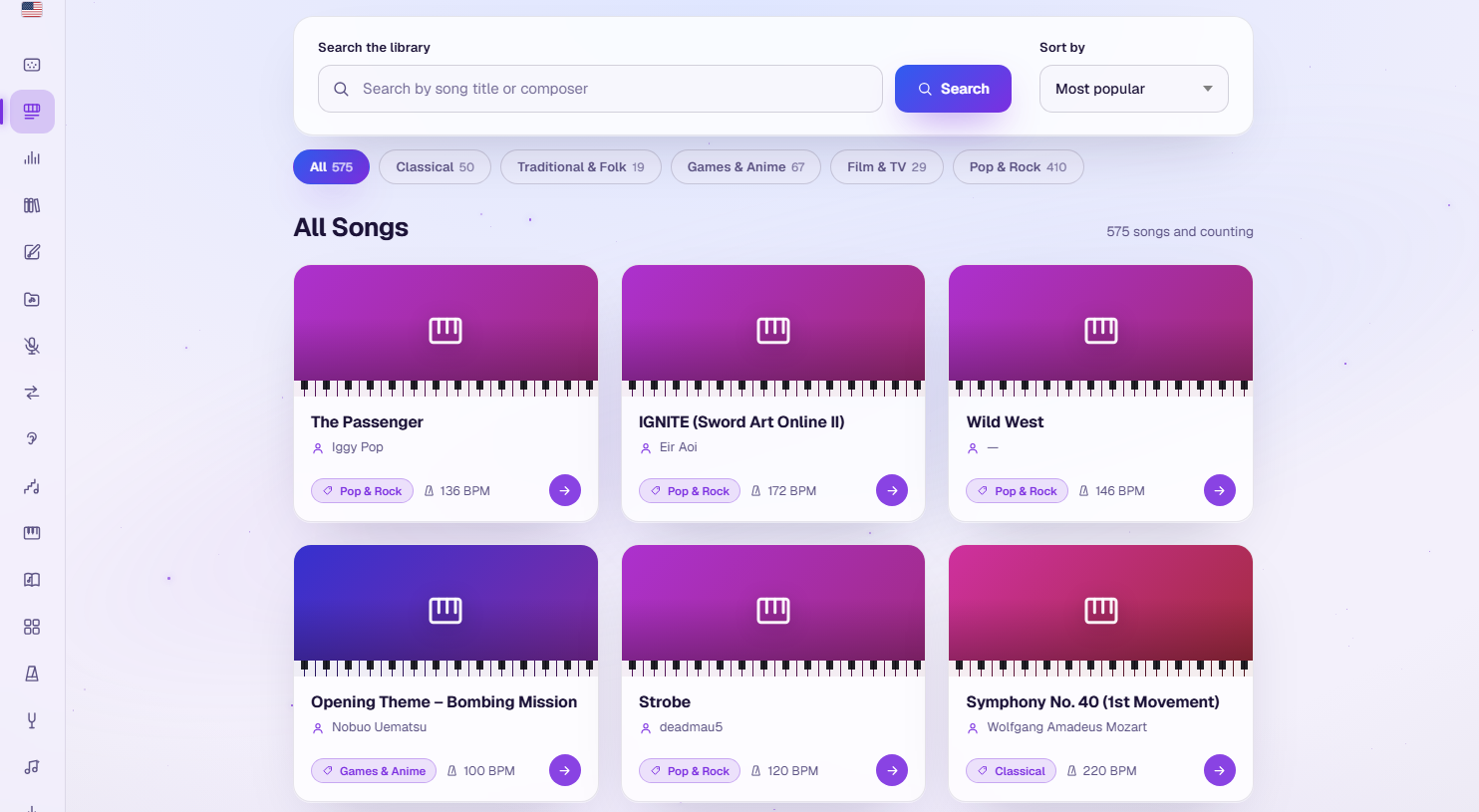
Three controls sit above the grid:
- Search the library — matches both the song title and the composer, so "beethoven" finds every Beethoven piece and "sonata" finds every sonata. Results narrow as you type.
- Sort by — Most popular (the default), Title (A–Z) or Composer (A–Z). The default order is reshuffled once a day and then held steady for the rest of that day, so the front of the library keeps changing and you meet different pieces on different visits — but it never rearranges itself under you mid-scroll.
- Category chips — five categories, each showing how many pieces it holds: Classical (50), Traditional & Folk (19), Games & Anime (67), Film & TV (29) and Pop & Rock (410). All brings back the whole 575.
Every card shows the title, the composer (a dash when we do not have one), the category and the tempo in BPM. The grid loads 24 songs at a time and fetches the next batch as you scroll, so you can keep going without paging.
Why it feels instant: the whole catalogue is fetched once as a single small file when the page opens, and all the searching, sorting and filtering then happens in your browser. There is no round trip to the server per keystroke.
A page for every song
Clicking a card opens that song's own page — a short, plain page whose job is to tell you what the piece is and then get you to the visualizer.
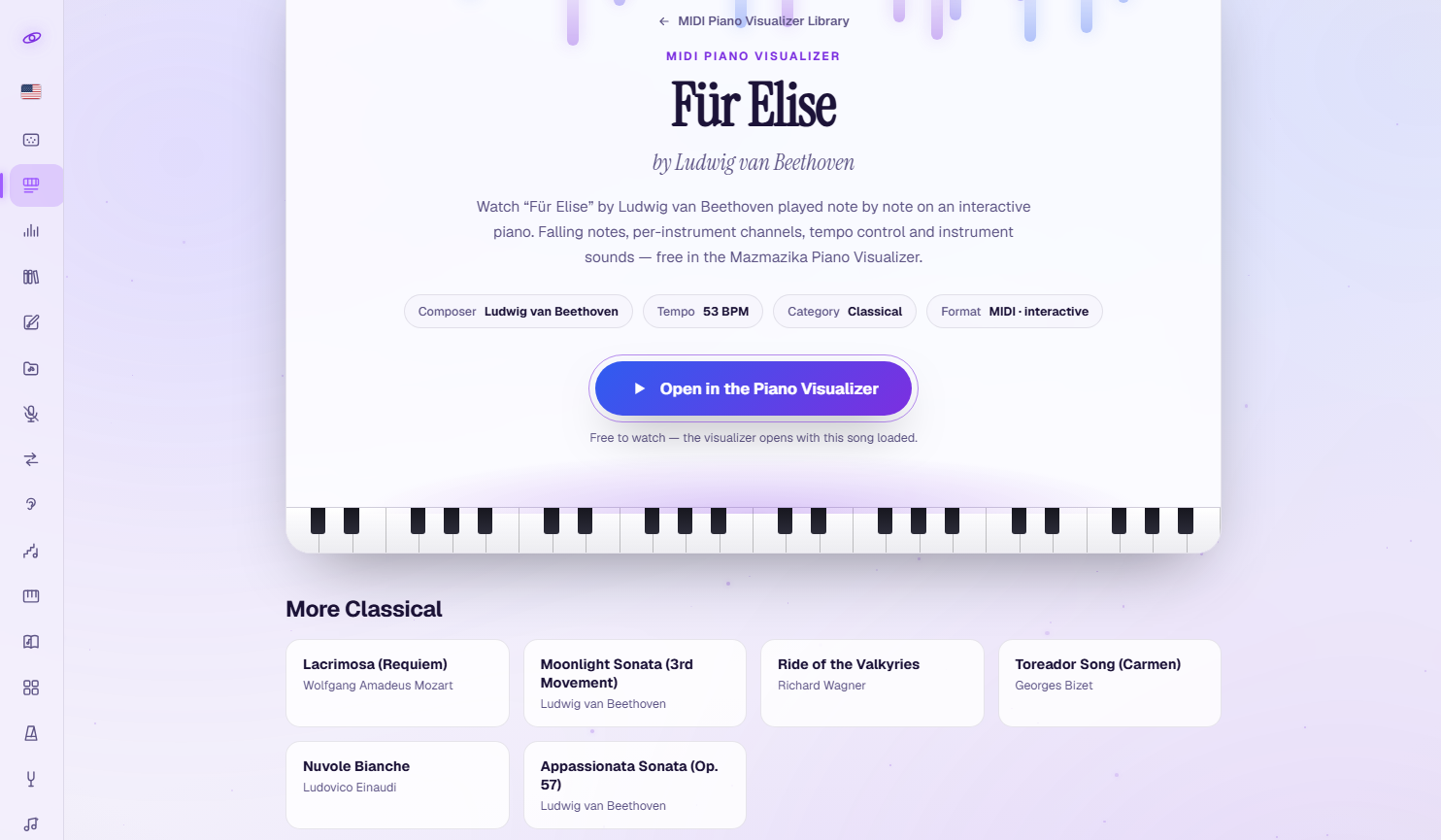
You get the title and composer, four metadata chips — Composer, Tempo, Category and Format — and one button, Open in the Piano Visualizer, which hands the piece straight to the visualizer with everything already selected. Underneath, a More <category> row suggests six other pieces from the same shelf, which is a pleasant way to fall down a rabbit hole of film scores or game themes.
These pages have real addresses you can keep. Für Elise lives at /midi-piano-visualizer-library/fur-elise, so you can bookmark a piece, put it in a lesson plan, or send the link to somebody and know they will land on the right song. A link with a slug that does not exist simply returns you to the library rather than showing an error.
Opening a piece on the visualizer
The button hands off to the Audio & MIDI Piano Visualizer, which opens full-screen with the notes already loaded. Everything the visualizer can do applies from there: watch the notes fall onto the keyboard, mute and solo the instrument channels, hide tracks from the grid while they keep playing, and record the result as a video. Its own manual, in the Audio & MIDI Piano Visualizer section of this help center, covers the stage in detail.
Two things are worth knowing before you click, because the song pages do not spell them out:
- You need a free account. Browsing this library needs nothing at all, but the visualizer asks you to sign in when it opens. It happens in place and the piece loads straight afterwards.
- A free account can open two library pieces a day. That counter is separate from the tool's other limits, so using it up does not affect transcribing audio or importing your own MIDI. Pro accounts are unlimited.
The song pages describe the visualizer as offering "tempo control and instrument sounds" — those two are Pro features. On a free account you still get the full stage, the mixer, mute and solo, track visibility and video capture up to 480p; changing the tempo and swapping instrument sounds need Pro.
Tips
- Search by composer to build a practice set. One search for a composer's name gives you everything of theirs in the catalogue at once.
- Use the category chips to set the mood rather than hunting by name — Games & Anime and Film & TV are where the recognisable melodies hide.
- Sort by Title or Composer when you are looking for something specific. The default order changes daily by design, so it is the wrong tool for finding a piece you saw yesterday.
- Bookmark the song page, not the visualizer. The song page is a stable, shareable address; it will always take you to the piece.
- Check the BPM on the card. A 200 BPM piece will fly past on the grid — pick a slower one when you are learning, or use the visualizer's tempo control if you have Pro.
Troubleshooting
- Your search found nothing. Search only looks at titles and composers, not categories or lyrics. Try a shorter fragment, or clear the search and use a category chip instead.
- A piece you remember has moved. The default Most popular order is reshuffled each day. Sort by Title (A–Z) or search for the name.
- A link sent you back to the library. That slug is not in the catalogue — the link was mistyped, or the piece has been removed.
- Asked to sign in after pressing the button. Expected: browsing is free, but the visualizer needs a free account.
- Nothing left for today. Free accounts open two library pieces per day. The counter resets daily, and Pro removes it.
- The composer shows a dash. Some entries in the catalogue have no composer recorded. The music is unaffected.
Related tools
Open any of these pieces on the Audio & MIDI Piano Visualizer, which also transcribes your own audio into notes. Beyond that: write your own score in the Notes Editor, play by hand on the Virtual Piano, or find a song's chords with the Chord Analyzer.