Notes Editor — User Manual
What is the Notes Editor?
The Mazmazika Notes Editor is a professional sheet-music editor that runs in your browser — nothing to install. Write music note by note with engraving-quality notation, hear it back instantly, type notes straight from your computer keyboard or play them in over MIDI, and share a link so others can view — or even edit the same score with you in real time. When you're done, download MusicXML, MIDI, audio or a print-ready PDF.
The editor at a glance
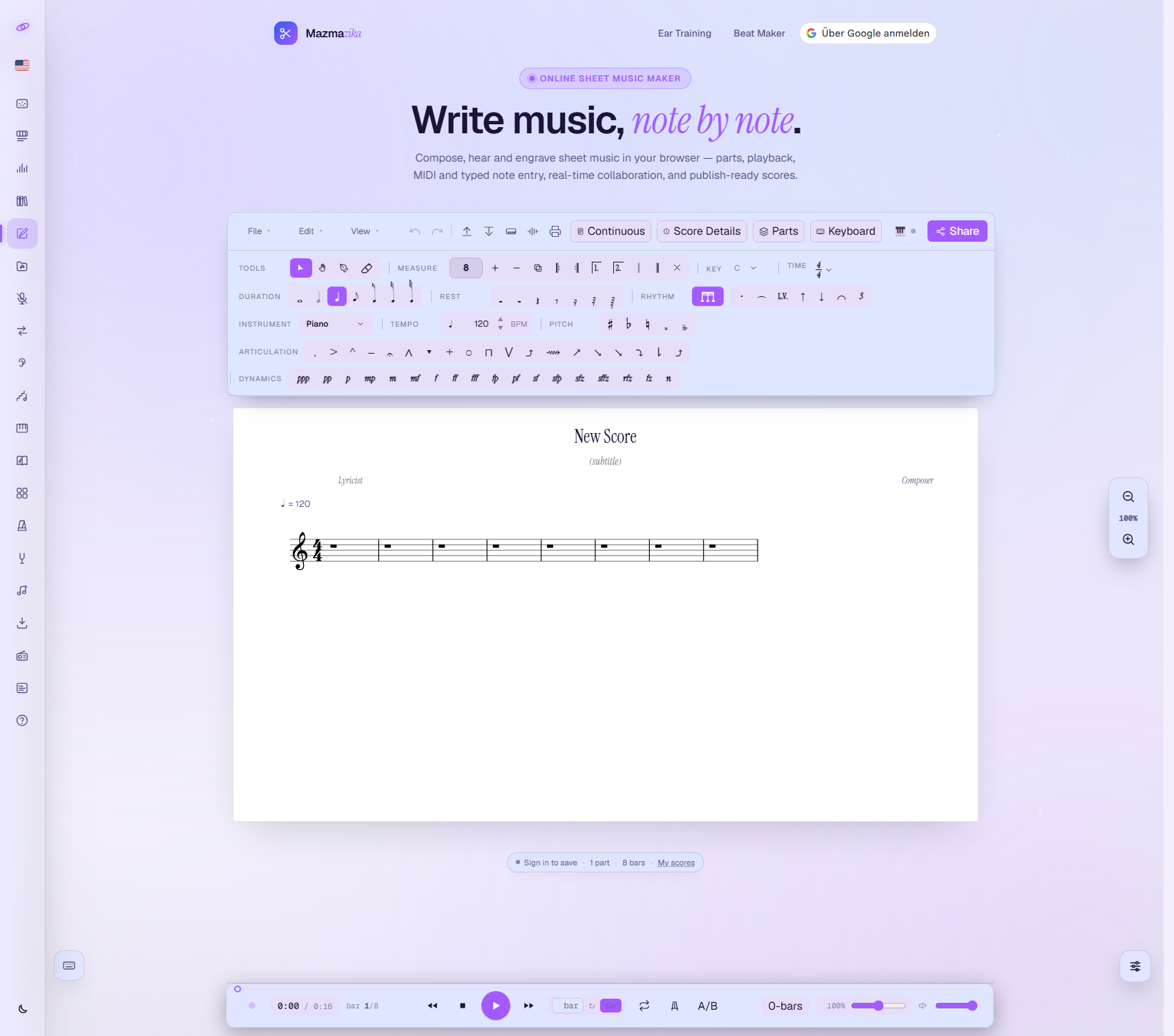
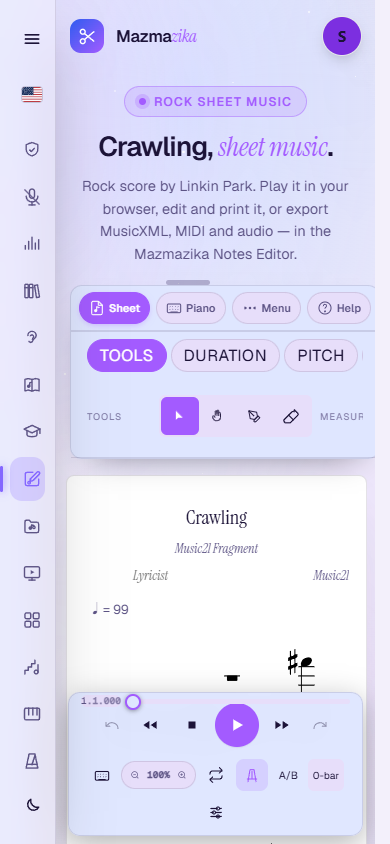
Open the Notes Editor from the left sidebar (or the Notes Library, where every score opens straight into it). The workspace is one tidy deck: a menu bar (File / Edit / View, undo–redo, quick import/export and print icons, the Continuous / Page view toggle, Score Details, Parts, the on-screen Keyboard toggle, a MIDI status light and Share), the palette of notation tools, your manuscript below, a floating zoom control on the right, and the transport bar along the bottom. A status pill under the sheet shows saved state · parts · bars and opens My scores.
Create & set up a score
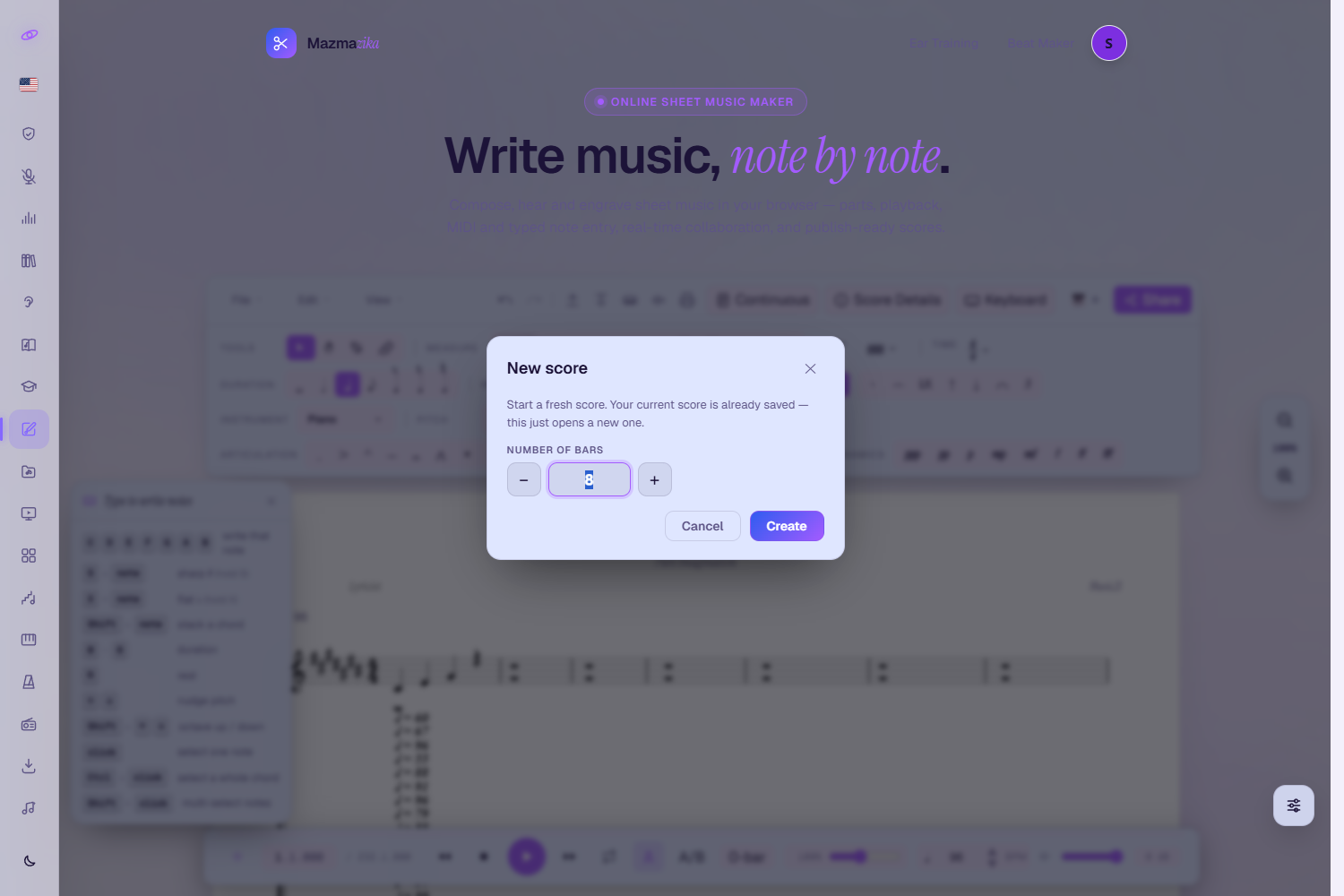
File → New score (or Ctrl+N) asks how many bars you want — anything from a 4-bar sketch up to 512 — and opens a fresh manuscript; your current score is already saved. Then make it yours:
- Score Details — title, composer, lyricist and the other header fields; you can also click the title right on the sheet and type.
- Key and Time — pickers in the palette. Key changes re-spell the whole score, and the time picker covers 2/4, 3/4, 4/4, 3/8, 6/8, 9/8, 12/8, 5/4 and 7/8.
- Measures — add or remove bars with the Measure + / − buttons, or type a total straight into the bar-count field.
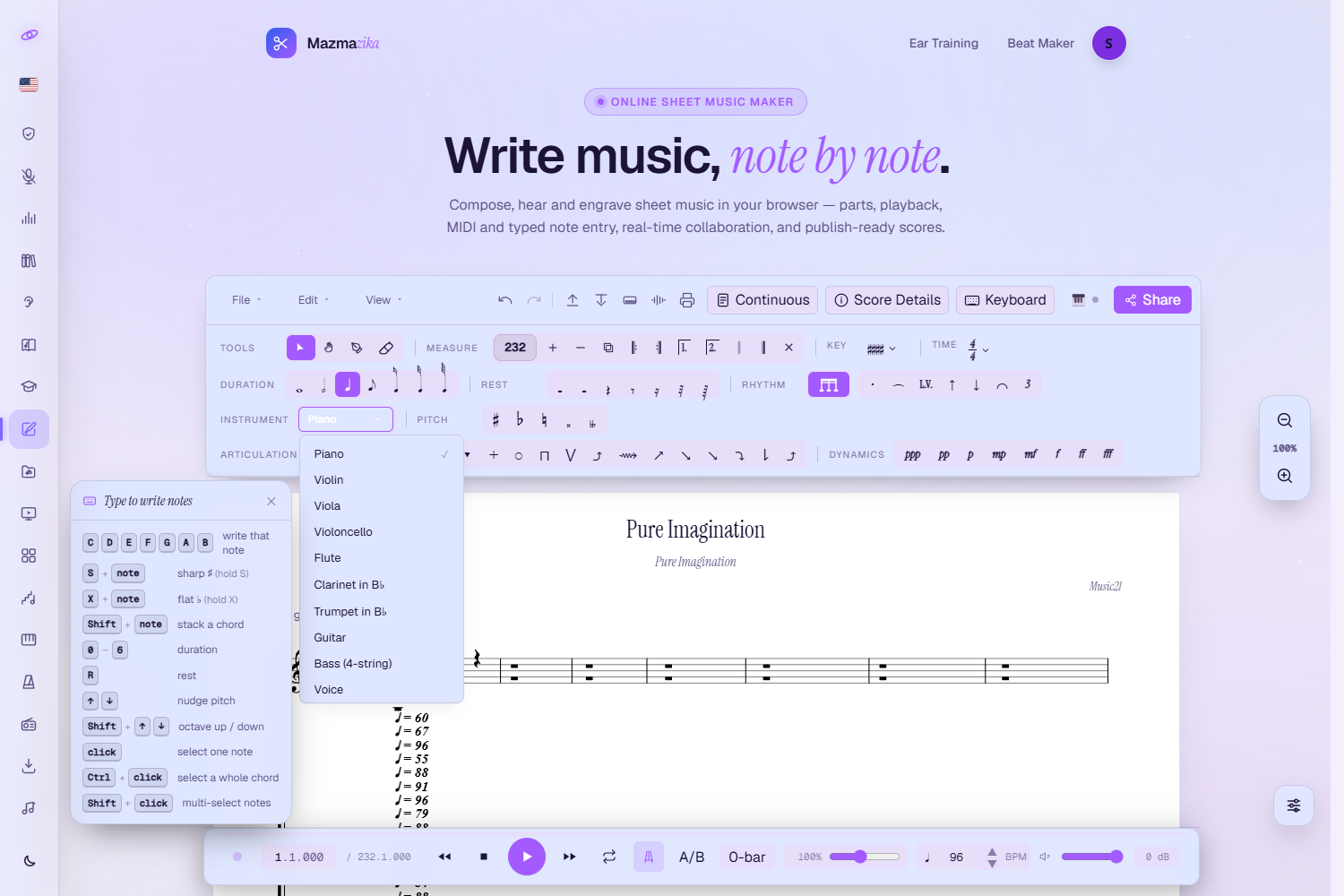
- Instrument — the palette's Instrument picker sets the active part's sound and clef (Piano, Violin, Viola, Violoncello, Flute, Clarinet, Trumpet, Guitar, Bass, Voice).
- Tempo — the palette's Tempo group holds the score's BPM (with up/down buttons); it prints as the ♩= mark above the first bar.
Type your notes
The fastest way to write: just type. Letters become notes, and a cheat-sheet (the keyboard button at the bottom-left, or How to type notes on the status pill) reminds you of everything:
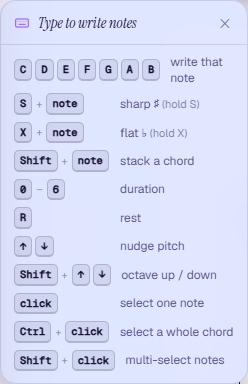
- C–B writes that note at the insertion point; hold S for a sharp, X for a flat.
- Shift + a letter stacks that pitch onto the selected note — chords in seconds.
- 0–6 picks the duration (0 is a 64th, 6 a whole note), R writes a rest, ↑ ↓ nudge the pitch and Shift + ↑ ↓ jump a whole octave.
The palette
Everything you can put on paper lives in the palette: Tools, Measure, Key, Time, Duration, a matching Rest row, Rhythm (auto-beam, dots, ties, L.V., tie direction, slurs, triplets), Instrument, Tempo, Pitch, Articulation and Dynamics.
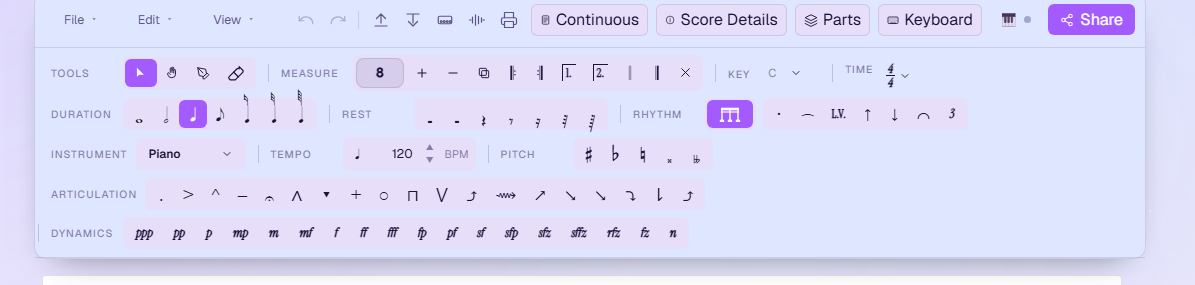
- Four tools — Select (click notes to inspect and edit), Pan (drag the score to scroll), Note input (click the staff to insert) and the Eraser (click a note to turn it back into a rest).
- Click to place — pick a note or rest duration and the pen arms itself: a ghost preview follows your pointer on the staff, and a click drops the note right there. Clicking close to an existing note stacks a chord; clicking further along adds the next note.
- Drag & drop — every glyph can also be dragged straight onto the staff, including onto a specific note (accidentals, articulations, ornaments, dynamics).
- Pitch gives you sharp, flat, natural, double sharp and double flat — plus microtonal accidentals once you switch them on in Tweaks.
- Articulation runs well past the basics: staccato, accent, marcato, tenuto, fermata, strong accent, staccatissimo, closed and open, up and down bow, and the jazz set — scoop, plop, doit, rips and falls.
- Dynamics covers ppp to fff and the combinations: fp, pf, sf, sfp, sfz, sffz, rfz, fz and n.
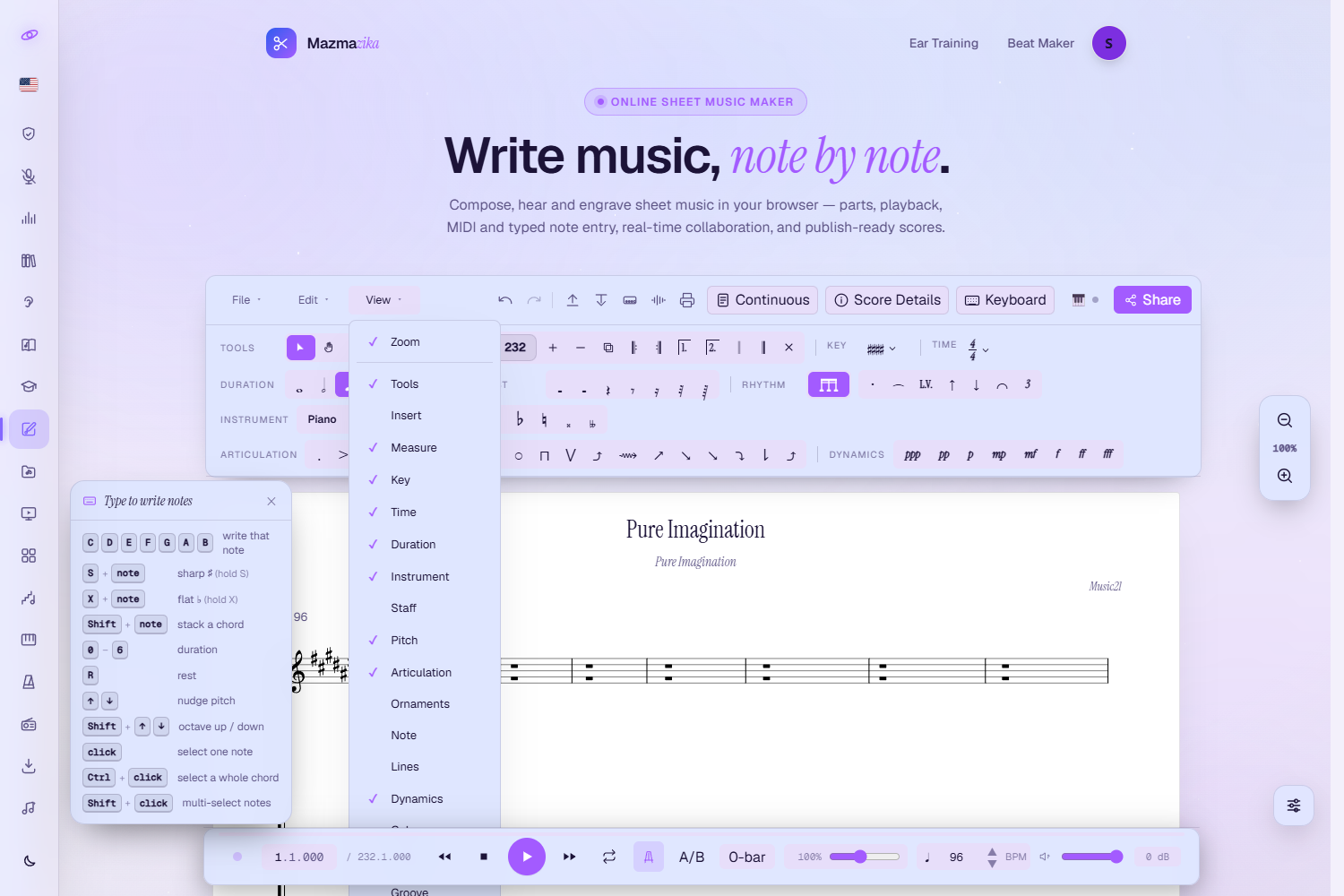
- Make it yours — the View menu toggles whole palette groups; turn on the extras (Insert, Staff, Ornaments, Note, Lines, Colour, Groove) or hide what you never use.
Repeats, voltas & barlines
The Measure group does more than count bars. Next to + and − sit a duplicate button (copies the current bar across every part) and the structural marks:
- Start repeat 𝄆 and End repeat 𝄇 — click them on the bar you want; playback loops back to the start repeat.
- Volta 1 and Volta 2 — first-time and second-time endings.
- Double barline 𝄁 and final barline 𝄂, plus a ✕ that clears the barline or volta from the current bar.
Playback follows all of it. The player walks the score the way a musician would — through the repeats and taking the right volta on each pass — so what you hear is the piece as written, not just the bars left to right.
Select & edit
- Click a note to select it (in a chord, exactly the notehead you clicked); Ctrl+click selects the whole chord; Shift+click adds more notes to a multi-selection; dragging across the staff selects a range.
- Arrow keys transpose the selection (Shift for octaves); Delete removes it.
- The Edit menu (and the usual Ctrl+C / X / V / A) copies, cuts, pastes and selects all — with full undo/redo (Ctrl+Z / Ctrl+Shift+Z) behind everything.
- Selected notes also sound as you click them, so you can check a chord by ear.
- Search in the menu bar finds your way around a long score, and the ? button opens the full keyboard-shortcut list.
Parts & the mixer
Parts in the menu bar opens the part list — this is where a score becomes an ensemble:
- Add part — a new staff with its own instrument, and Add a second staff turns a part into a grand staff (treble + bass) for piano writing.
- Toggle visibility — hide a part while you concentrate on another; it keeps playing.
- Mixer — the menu-bar mixer balances the parts against each other for playback.
Scores from the Notes Library and imported MusicXML files open with all their parts already set up, each playing its own instrument.
Arabic maqam key signatures
The Key picker has two tabs. Western holds the usual majors and minors; Maqam writes Arabic modes with the quarter-tone accidentals they need — Rast, Bayati, Hijaz, Saba, Kurd, Nahawand, Ajam and Sikah. Pick one and the editor spells the whole score in that maqam, half-flats and all. Turn on microtonal accidentals in Tweaks to place them note by note as well.
On-screen piano, piano roll & MIDI
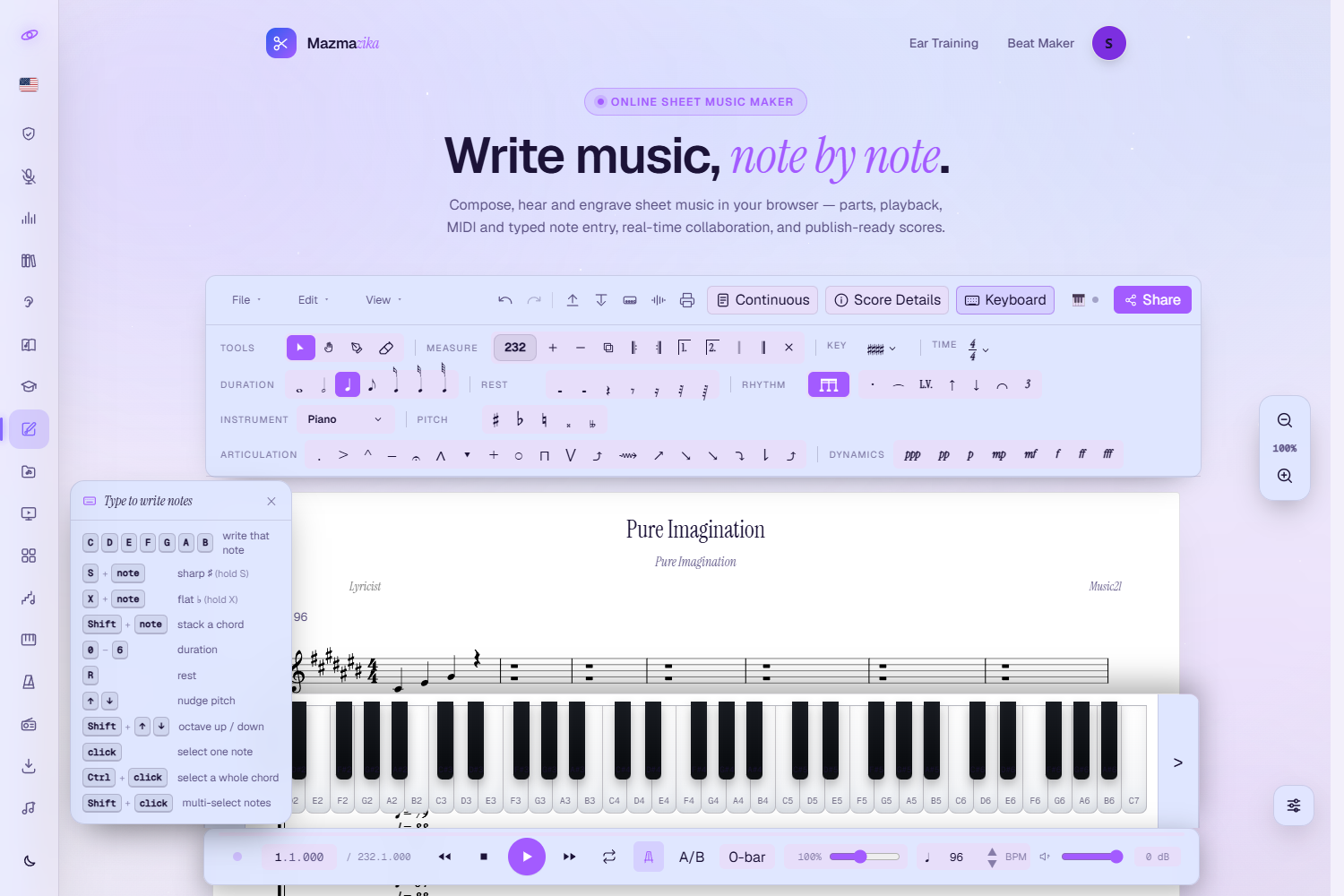
No instrument at hand? Toggle Keyboard in the menu bar and a piano dock slides up — click keys to enter notes. The menu bar also flips the workspace between the note sheet and a piano roll, if you'd rather see the music as blocks on a grid.
With a hardware MIDI keyboard (Chrome or Edge), the MIDI button shows your device and entry mode: in step mode notes land one by one as you play; in real-time mode the ● record button on the transport captures your performance in time and quantizes it onto the grid when you stop.
Two views & live zoom
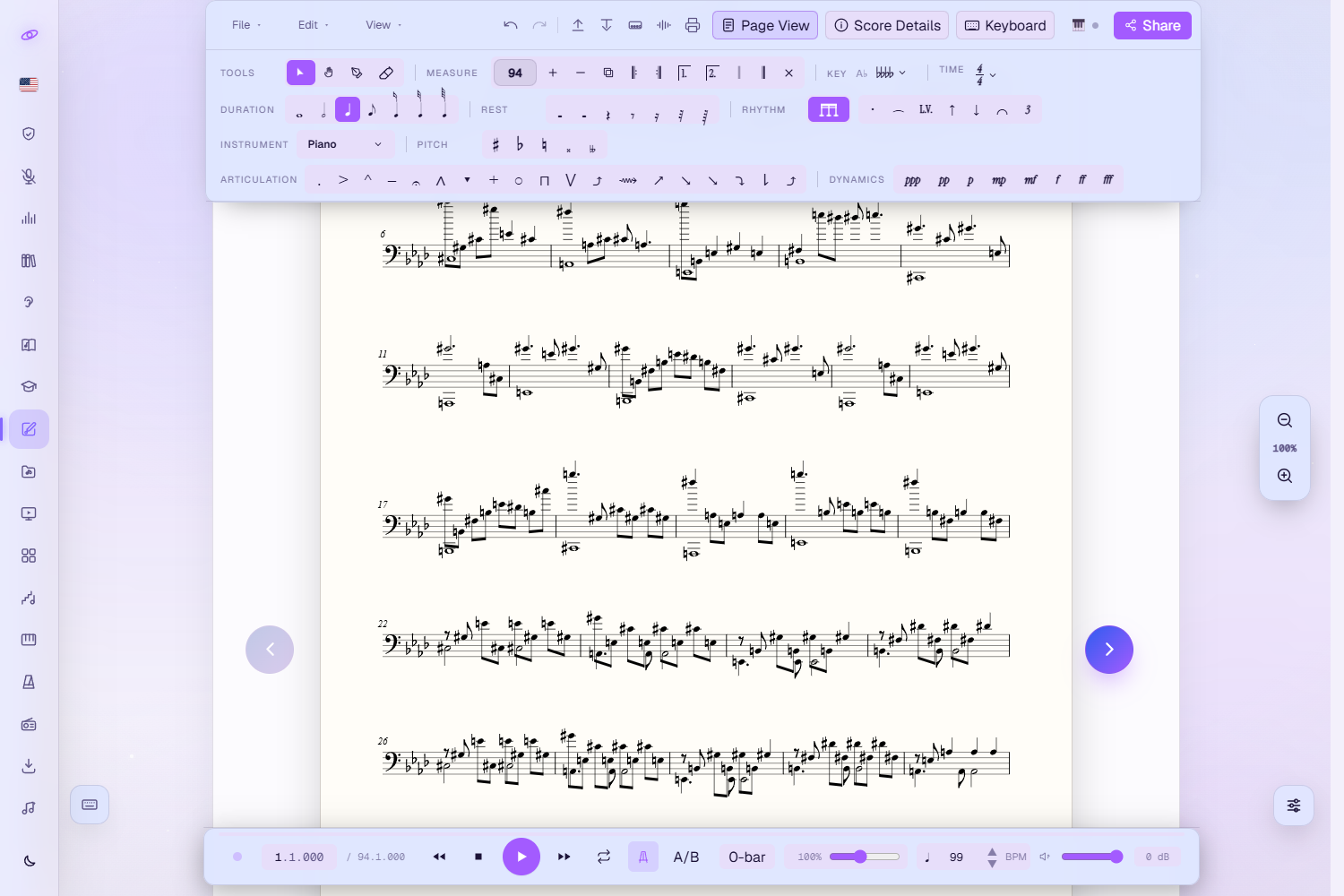
The menu-bar pill flips between Continuous (one endless system — great for writing) and Page view (real A4 pages — great for reading and print checks). In Page view, big themed ‹ › arrows flip between pages. The floating zoom control (30–200%) genuinely re-engraves the music — zooming out fits more bars per line, zooming in gives you fewer, bigger ones.
Playback
Press play and the score performs itself — the sounding notes light up and the view follows along.

- Position — the read-out shows elapsed and total time plus the current bar; drag the progress line to seek.
- Jump to a bar — type a bar number in the small field and press Go to land there.
- Metronome and a count-in (0/1/2 bars) keep you honest.
- A/B loop — click A/B, then pick the first and last note of the passage, and it loops while you polish or practise.
- Speed — the slider runs from 10% through 100% in the middle up to 1000%, without changing pitch. It affects what you hear only; exported MIDI, WAV and PDF keep the score's own tempo. To change the real tempo, use BPM in the palette's Tempo group — and while a mid-piece tempo mark is in force, the transport shows the live BPM it's actually playing.
- Volume — a real master-volume slider with a dB read-out, live even mid-playback.
Saving — autosave, My Scores & My Projects
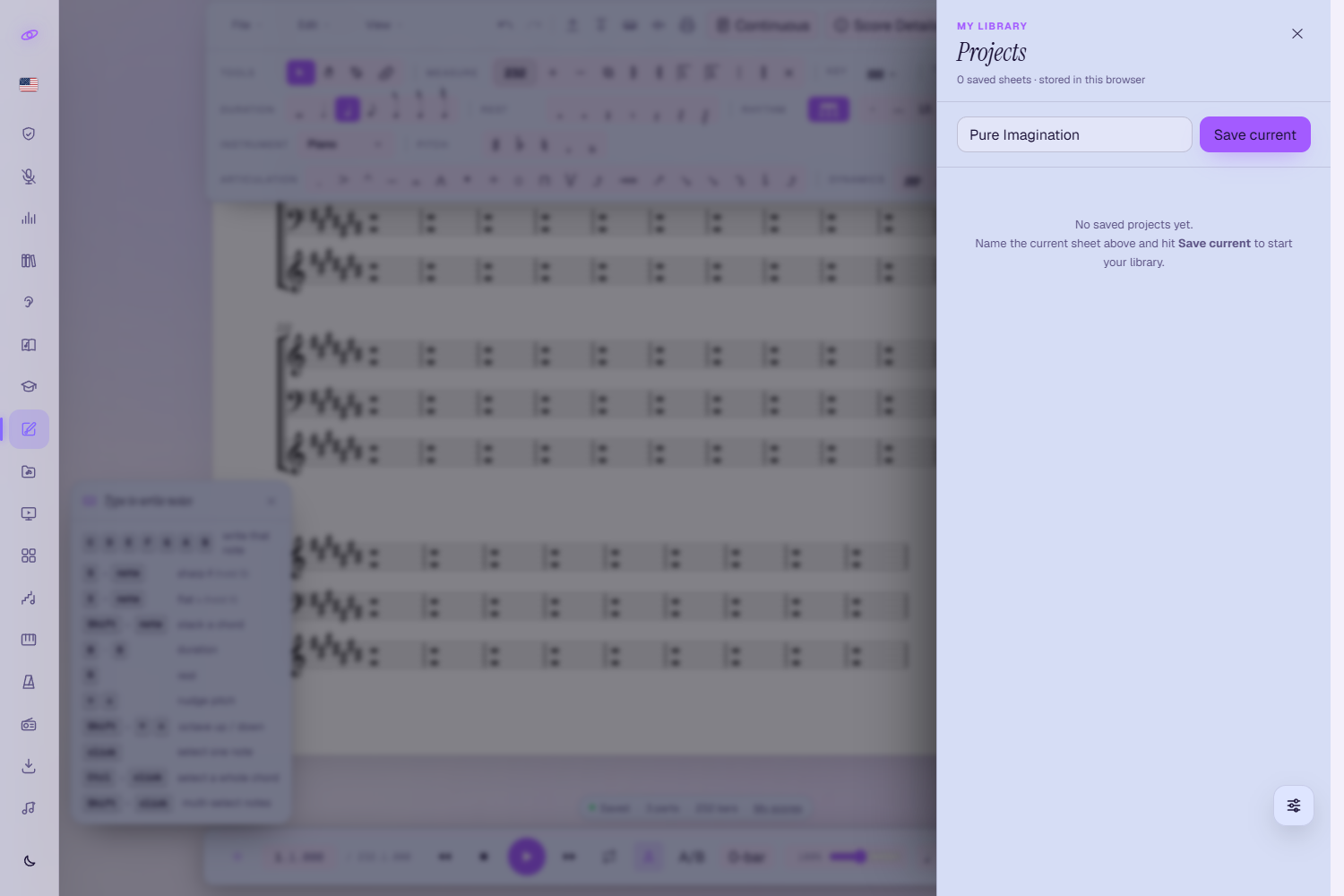
Signed in, your work autosaves to your account as you edit — the status pill under the sheet reads Saved, and My scores (right on that pill) lists everything you've written so you can reopen or delete any score. Signed out, the pill reads Sign in to save instead. On top of that, File → Save to My Projects keeps named snapshots in this browser — quick local versions you can restore any time.
Share & collaborate live
Hit Share and pick the link that fits. Share becomes available once the score has been saved, so make an edit first if the button is still greyed out:
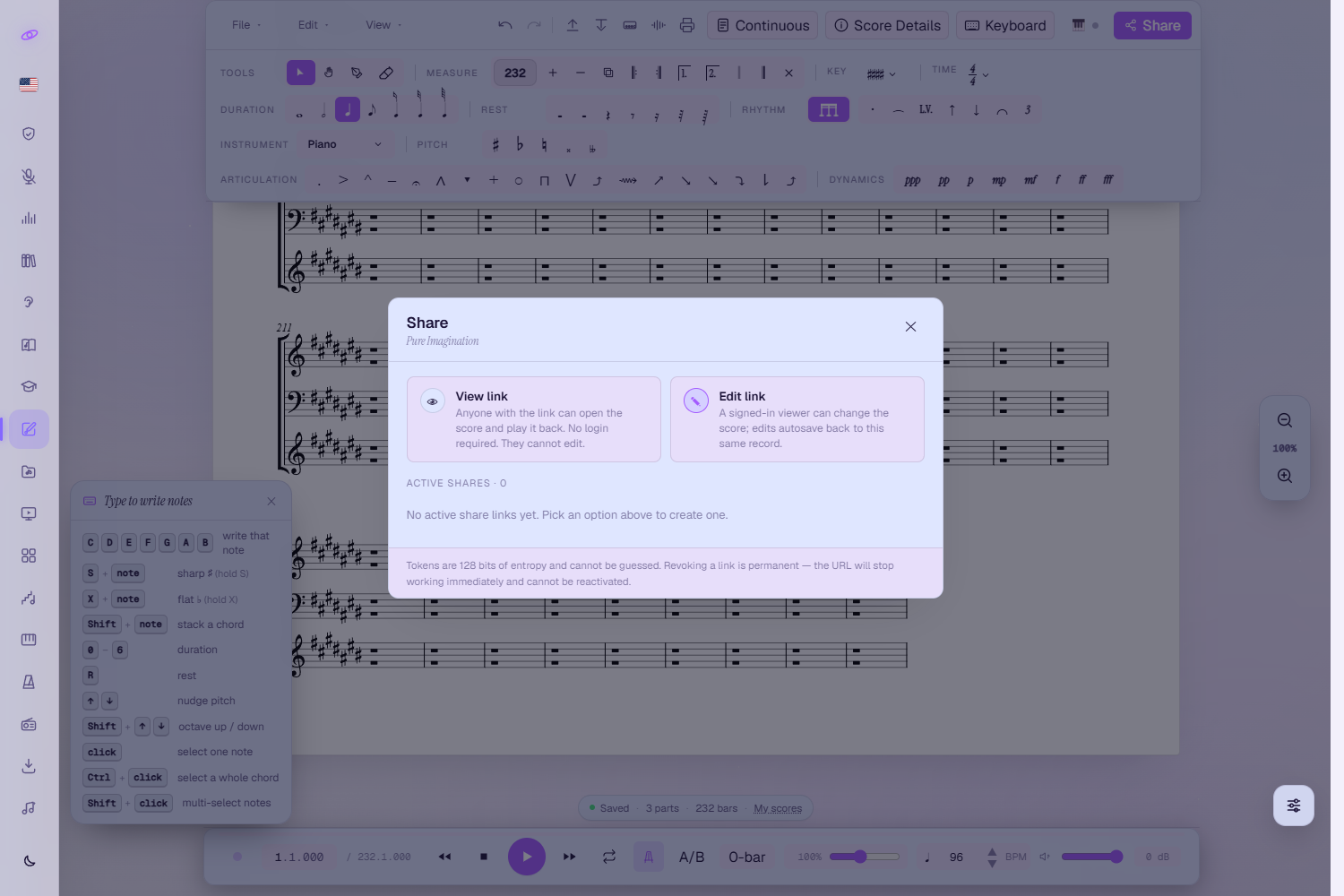
- View link — anyone can open and play the score; no login, no editing.
- Edit link — signed-in collaborators edit the same score with you, live: you see each other's presence and changes in real time, and everyone's edits autosave to the one record. Undo only touches your own edits.
- Comments — on shared scores, readers and co-writers can leave comment threads pinned to specific notes — ideal for teacher feedback.
- Links are unguessable tokens and can be revoked permanently at any time.
Import, export & print
The File menu (and the matching menu-bar icons) covers the whole round trip:
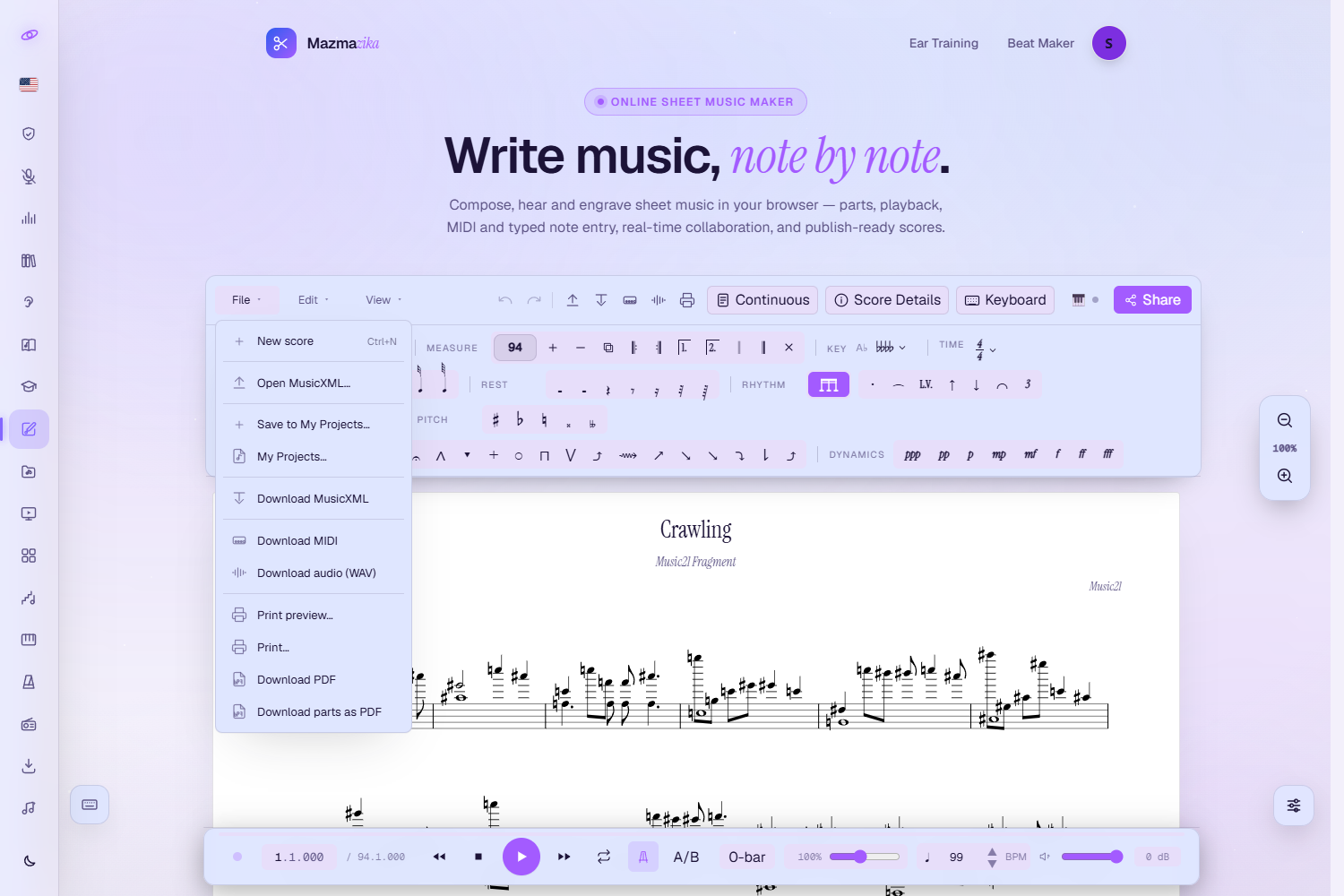
- Open MusicXML… — bring in scores from MuseScore, Finale, Sibelius or anywhere else.
- Download MusicXML / MIDI — take your music to other notation software or a DAW.
- Download audio (WAV) — an offline render of the playback.
- Print / Download PDF / parts as PDF — publish-ready pages, including one PDF per instrument.
Appearance
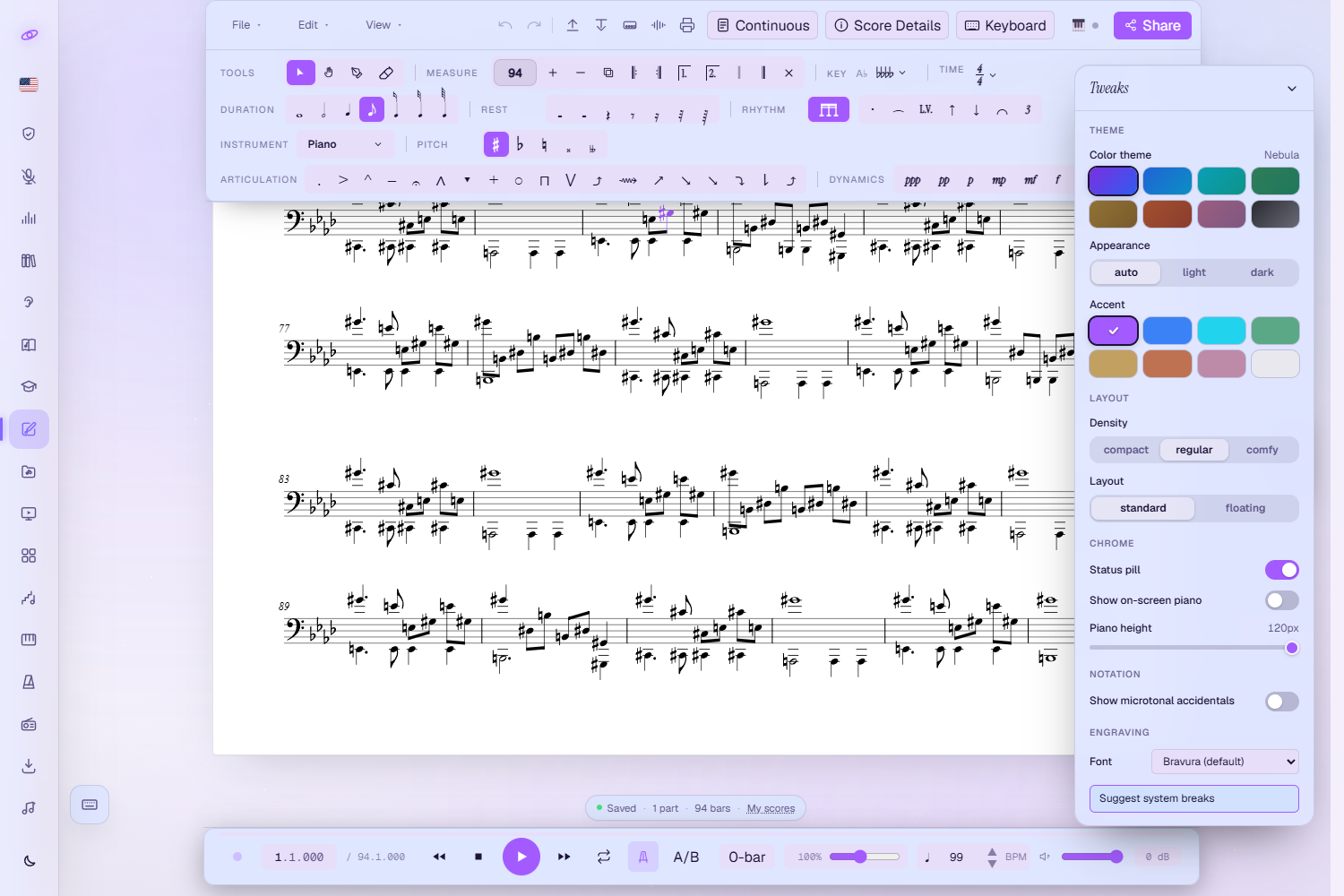
The gear button (bottom-right) opens Tweaks: eight colour themes, light / dark / auto appearance, accent colours, layout density, the status pill, on-screen piano size, microtonal accidentals for maqam writing, and even the engraving font.
On phones & tablets
Below about 1024 pixels wide — phones and most tablets — the editor switches to its touch layout. The palette becomes a tab strip with a tab for every section you'd see on the desktop, the transport reflows into two touch-friendly rows with drag-to-seek, and a Sheet ⟷ Piano toggle swaps between reading and playing. In the Tweaks panel you can set the mobile piano to Landscape — during playback it opens as a full-screen piano with its own transport, following the music across the keys.
Handy keyboard shortcuts
- C–B — write a note (S/X held = sharp/flat) · 0–6 duration · R rest
- Shift + C–B — stack a chord · ↑ ↓ nudge pitch · Shift + ↑ ↓ octave
- Ctrl+Z / Ctrl+Shift+Z — undo / redo
- Ctrl+C / X / V / A, Del — copy / cut / paste / select all / delete
- Ctrl+N — new score · ? — the full shortcut list · Esc — close any overlay
Tips
- Set up the score first (bars, key, time, instrument, tempo) — then the notes flow faster.
- Learn the typing keys — letters + 0–6 is by far the quickest way to sketch a melody.
- Write repeats instead of copying bars — the playback honours them, so the score stays short and still sounds complete.
- Loop a hard passage with A/B and pull the speed down while you practise it.
- Zoom out in Continuous view to see the piece's shape; zoom in to fine-edit.
- Share an edit link to co-write — it's the same score for everyone, live.
Troubleshooting
- Slow first load? The notation engine loads the first time you open the editor; give it a few seconds in an up-to-date Chrome or Edge.
- No sound on playback? Click the page once first (browsers only start audio after you interact), check the transport's volume slider, then your device volume.
- Changes not saving? Autosave needs an account — sign in and watch the status pill under the sheet change from Sign in to save to Saved.
- Share greyed out? A score has to exist before it can be shared. Make any edit, wait for Saved, and Share lights up.
- Playback faster or slower than expected? Check the speed slider — it may be off 100%. The exports ignore it and use the score's BPM.
- MIDI keyboard not detected? Use Chrome or Edge (Web MIDI), reconnect the device, then click the MIDI button in the menu bar to pick it.
- Collaboration not syncing? Everyone must open the same edit share link; view links are read-only by design.
Related tools
Browse ready-made scores in the Notes Library, find a song's chords with the Chord Analyzer, train your ear with Ear Training, or lay down a groove in the Beat Maker.