Ear Training — User Manual
What is Ear Training?
Mazmazika's Ear Training helps you develop a musical ear — the skill of recognising notes, intervals, chords and scales just by listening. You play short audio questions, choose what you heard, and get instant feedback on an interactive piano. It works for both relative pitch (hearing the relationship between notes) and perfect pitch (naming notes on their own).
Practice is organised as a graded course: each training type has a long ladder of numbered levels, and your results feed a Progress dashboard, Achievements and Leaderboards — so you can practise a little every day and watch your ear improve.
Who can use it
The Training Area list marks anything you can't open yet with a padlock (🔒), so you can always see what the next tier unlocks.
- Guests (not signed in): one training session per day, in the free areas only — Interval Comparison and Interval Identification for relative pitch, Single Note Identification for perfect pitch.
- Free accounts: the same areas with no daily limit, up to level 5 of the course.
- Pro subscribers: every area and every level, plus progress tracking, achievements and saved settings.
The trainer at a glance
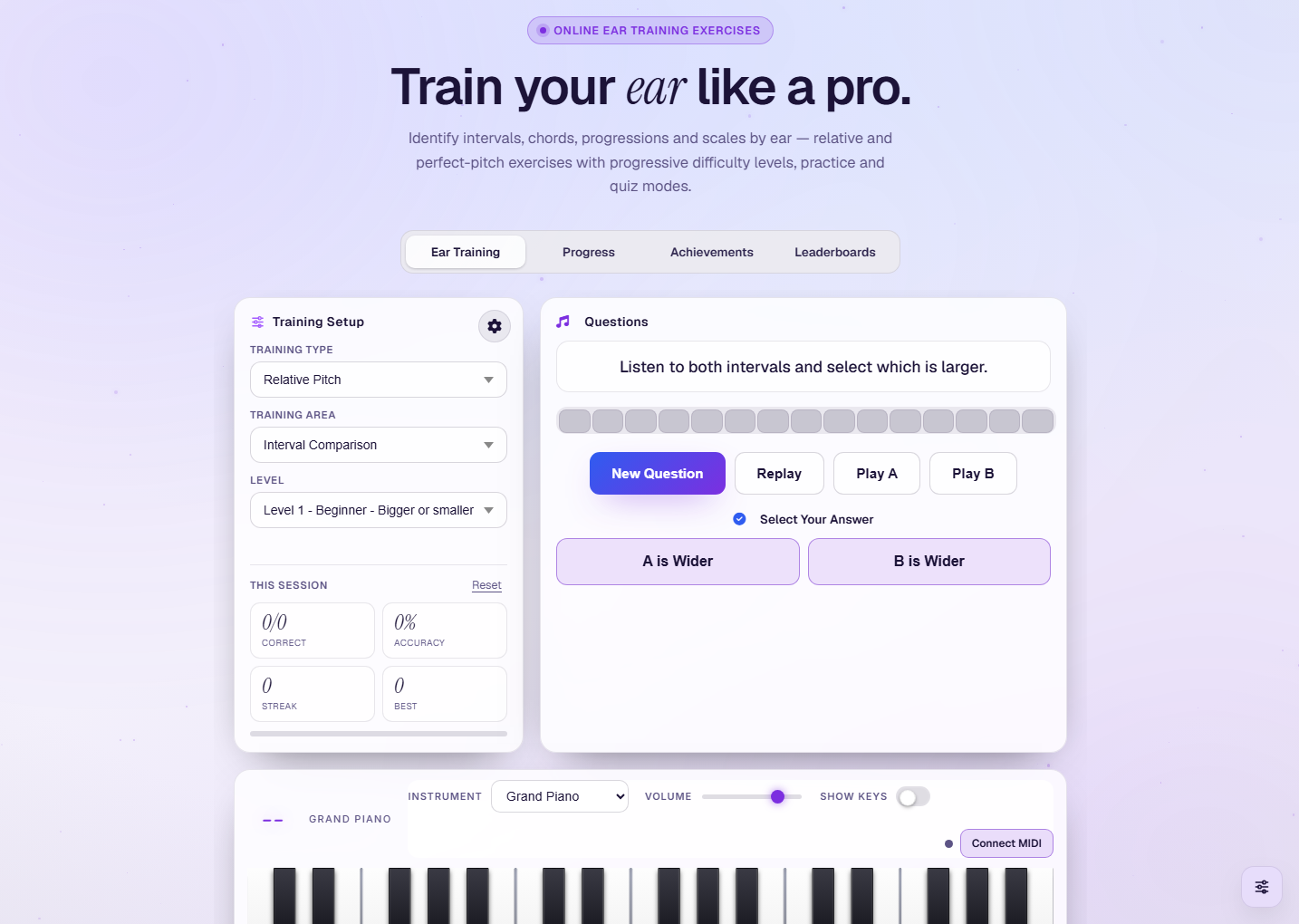
Open Ear Training from the sidebar. Below the hero is a tab bar — Ear Training (the trainer), Progress, Achievements and Leaderboards. The trainer itself has three parts: the Training Setup card (choose what to practise), the Questions card with your answer buttons, and the interactive piano along the bottom.
Setting up a session
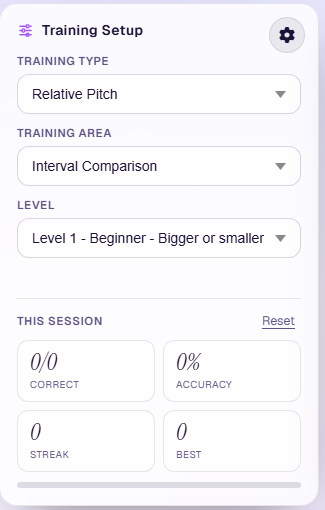
Everything you choose for a session lives in the Training Setup card on the left — pick a Training Type, a Training Area and a Level, fine-tune with the gear, and watch your This Session stats build as you answer. Reset clears those counters without touching your saved history. The next four steps walk through each choice.
Step 1 — Choose a Training Type
In Training Type, pick how you want to train your ear:
- Relative Pitch — recognise the relationship between notes (intervals, chords, progressions, scales). The most useful skill for most musicians, and the one selected when you arrive.
- Perfect Pitch — recognise individual notes on their own, with no reference.
Step 2 — Choose a Training Area
The Training Area list changes depending on the type you picked.
Relative Pitch areas
| Area | What you practise |
|---|---|
| Interval Comparison | Hear two intervals and decide which is larger |
| Interval Identification | Name the interval you hear (Unison → Octave and beyond) |
| Chord Identification | Recognise the chord type (major, minor, diminished, 7ths…) |
| Chord Progression Identification | Identify common progressions (e.g. I–IV–V, ii–V–I) |
| Chord Inversion Identification | Tell root position from 1st/2nd inversions |
| Scale Identification | Recognise scales (major, minor, modes, pentatonic, blues…) |
Perfect Pitch areas
| Area | What you practise |
|---|---|
| Single Note Identification | Name one note played on its own |
| Multiple Note Melodic Identification | Name notes played one after another |
| Multiple Notes Harmonic Identification | Name notes played together (a chord) |
| Three Notes Identification | Click the 3 notes you heard on the piano |
| Scale Identification | Recognise the scale being played |
Step 3 — Pick a level
The Level dropdown is a full graded course, not a difficulty switch. Each entry names its tier and exactly what it drills — Level 1 – Beginner – Bigger or smaller: unison, seconds, thirds, then Level 2 – Beginner – Minor vs major seconds, and so on. The ladder climbs through Beginner, Intermediate, Advanced 1 to Advanced 4, Master and finally Grand Master, with graduation checkpoints along the way.
- Relative Pitch runs to 90 levels, moving between intervals, chords, progressions, inversions and scales as it goes.
- Perfect Pitch runs to 106 levels, starting from just three notes (C3, D3, E3) and widening from there.
- Start at level 1 and work up — each level's settings are loaded for you, so the course decides what appears and you can simply practise.
Step 4 — Fine-tune with Settings (optional)
The gear on the Training Setup card opens Ear Training Settings. What you see depends on the area — for intervals you get an Interval Selection checklist covering 0–24 semitones, from P1 (Unison) to P15 (2 Octaves), with a Select All / Deselect All shortcut; chord and scale areas offer the chord or scale types instead. Below that:
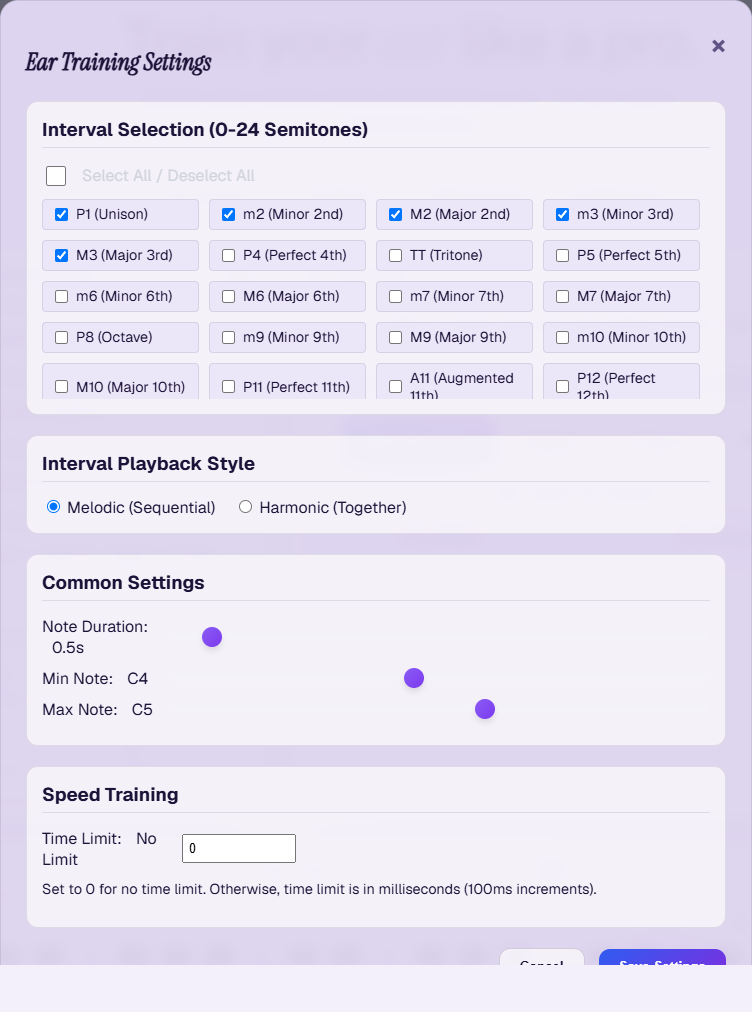
- Playback Style — Melodic (Sequential) plays the notes one after another; Harmonic (Together) sounds them at once.
- Note Duration — from 0.3 to 4 seconds per note (0.5 s to start). Stretch it out while you're learning.
- Min Note / Max Note — the range questions are drawn from, anywhere across the piano (C4–C5 to start).
- Speed Training — a per-question time limit; leave it at 0 for no limit.
- Press Save Settings to apply them — Cancel closes without changing anything. Choosing another level reloads that level's own settings.
Answering questions
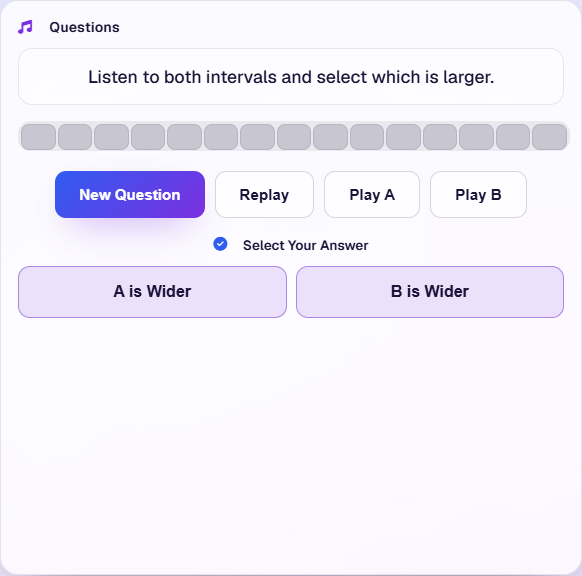
Once you start, the Questions card tells you what to do and Select Your Answer shows your choices.
The controls
- New Question — play a fresh question. (The first click also turns the sound on.)
- Replay — hear the same question again, exactly as before.
- Play A / Play B — in Interval Comparison, hear the first or second interval on its own.
- Answer buttons — tap the option you think is correct; it turns green if you were right and red if not.
- Progress bar — one step per question, filling in as you work through the level.
Visual feedback on the piano
After you answer, the piano marks the keys with coloured circles so you can see exactly what was played:
- Green — the correct note(s). In Interval Comparison, green marks the wider interval and red the narrower one.
- Red — your wrong choice, shown alongside the green correct answer.
- Blue — the bass note, when practising chord inversions.
The piano & sound controls
The keyboard along the bottom plays along with every question and shows the feedback. Above it you can:
- Instrument — pick from 20 sounds, including Grand Piano, Analog Synth, Electric Guitar, Brass Section, String Ensemble, Organ, Flute, Harpsichord, Vibraphone, Violin, Cello, Harp and Marimba.
- Volume — set the playback level.
- Show Keys — turn note labels on the keys on or off.
- Connect MIDI — plug in a MIDI keyboard (Chrome or Edge) to play and answer on real keys.
- Click keys — play notes yourself, and in areas like Three Notes Identification, click keys to enter your answer.
Track your progress
When you're signed in, every session is saved and surfaced in three tabs above the trainer.
Progress
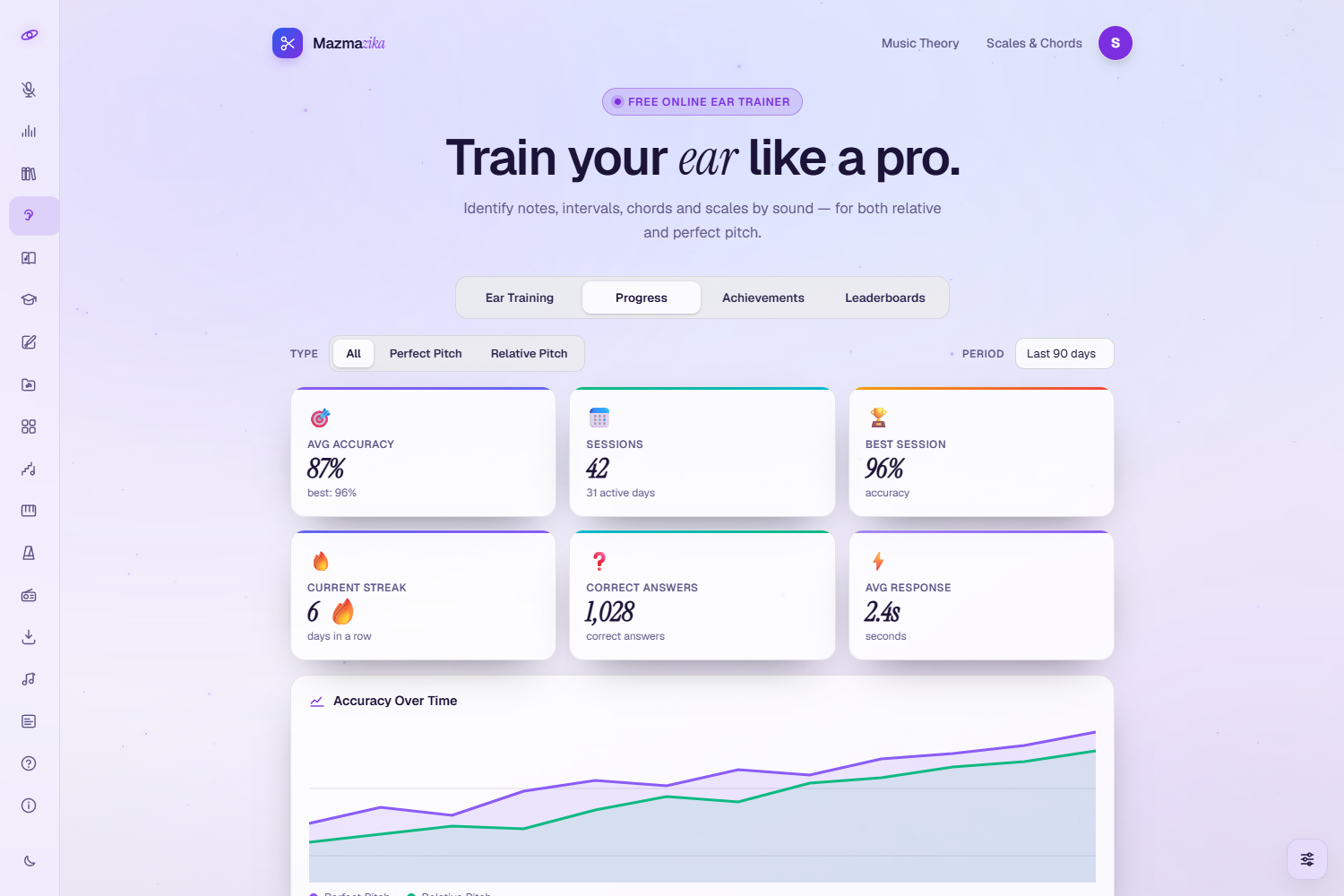
Six cards head the dashboard — average accuracy, sessions, best session, current streak, correct answers and average response time — followed by Accuracy Over Time, a Practice Activity heatmap of the last six months, a Skills Radar, an Area Breakdown and a full Session History table (date, type, area, level, accuracy, correct, response and duration). Filter it all by Type (all / perfect pitch / relative pitch) and by Period, from the last 30 days out to a year.
Achievements
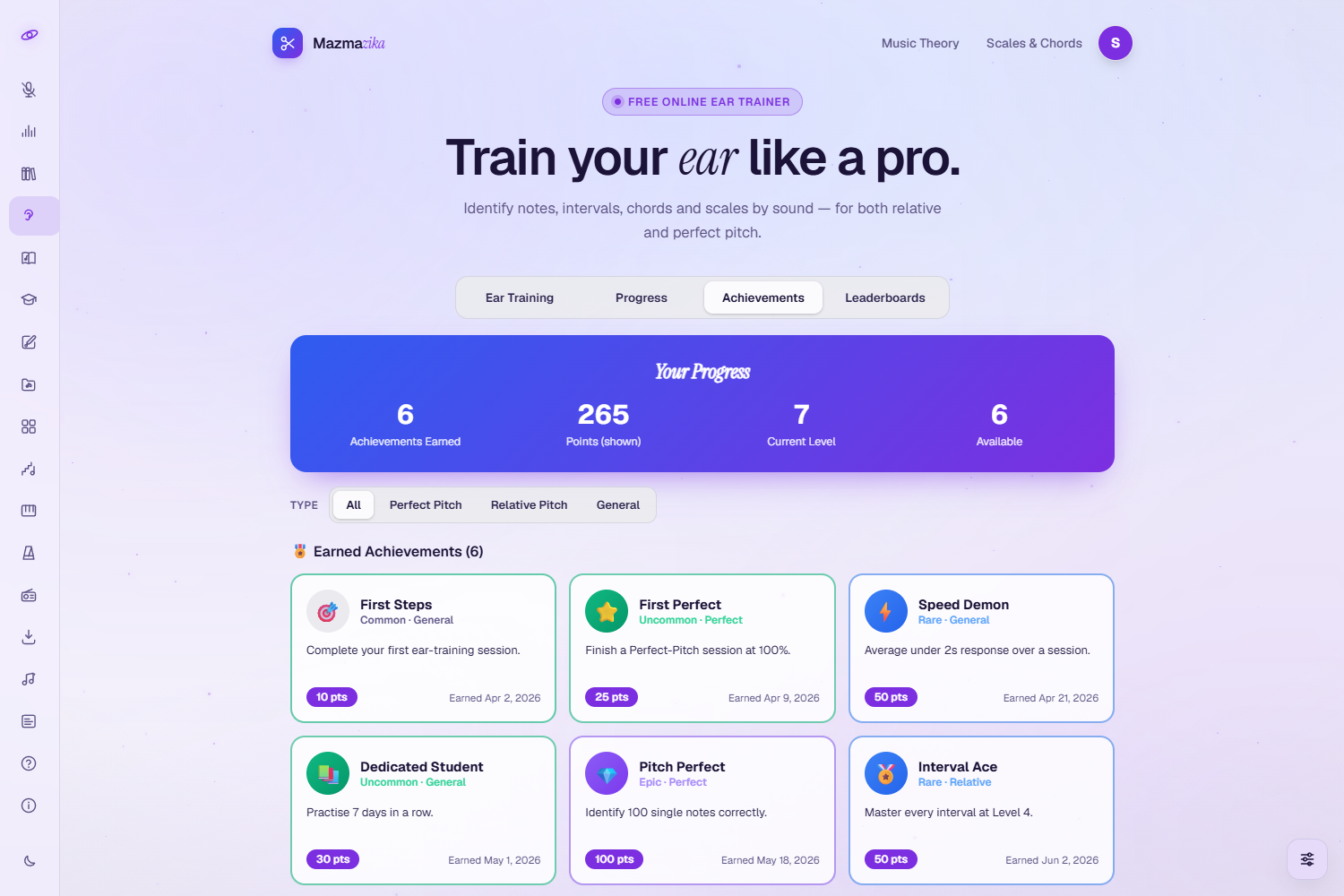
A Your Progress banner sums up achievements earned, points and your current level, then two grids list Earned and still Available badges. Each one carries a rarity — from common up through uncommon, rare and epic to legendary — so you can see at a glance which are the hard ones. Badge names are shown in English.
Leaderboards
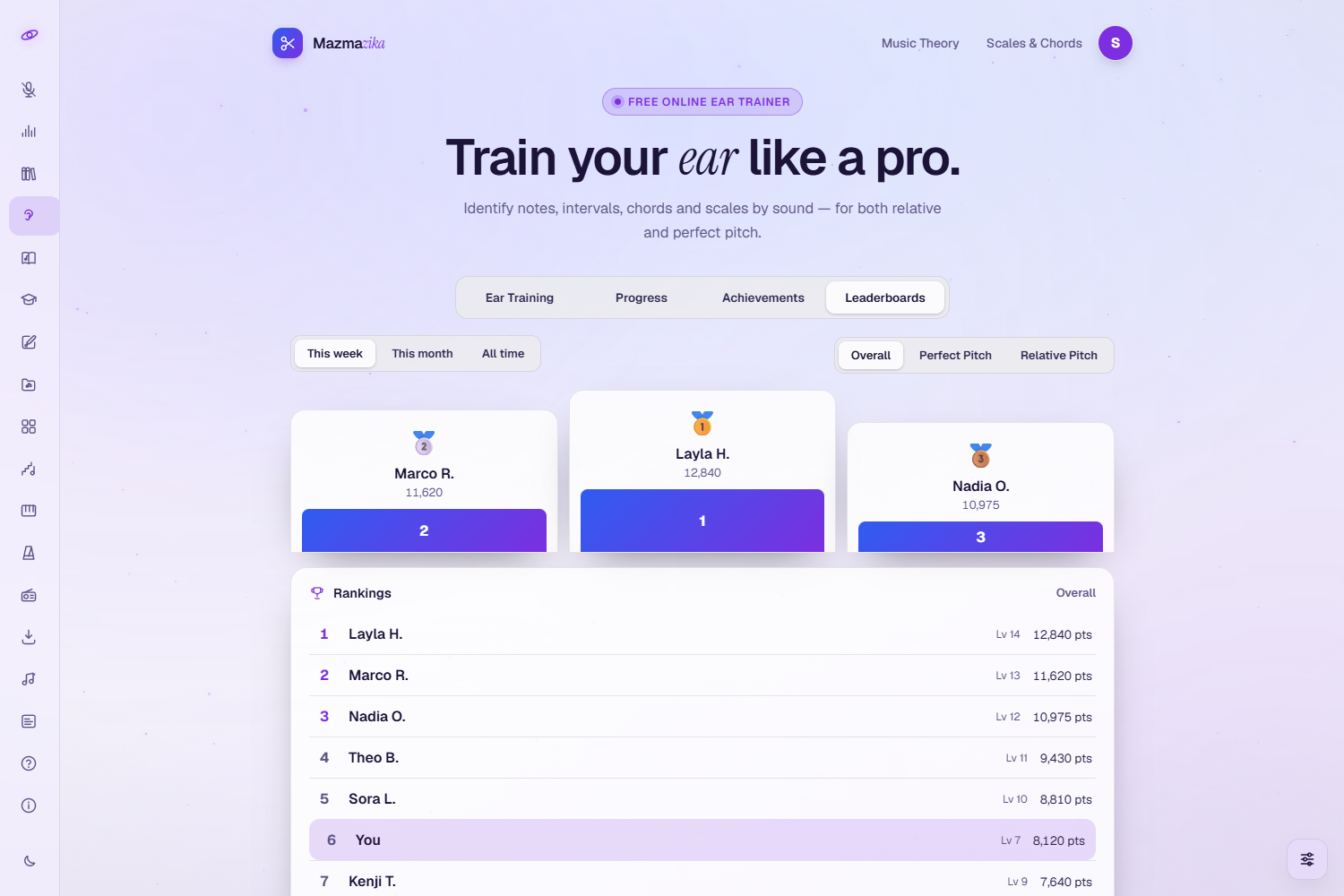
A top-three podium and a rankings list show how you compare with other players, filtered by time (this week / this month / all time) and by type (overall / perfect pitch / relative pitch). Your own row is marked You and every player shows their level.
Daily practice builds a streak — a little every day is the fastest way to improve.
Tips for better ear training
- Let the course lead. Start at level 1 and climb; each level is already configured for the skill it teaches.
- Use Replay freely — there's no penalty for listening again while you learn.
- Stretch the notes. A longer Note Duration makes a new interval much easier to hear.
- Practise a little daily. Short, frequent sessions beat occasional long ones.
- Begin narrow. Train a few intervals or chord types first, then add more in Settings.
- Sing it back. Humming what you hear strengthens recognition.
Troubleshooting
- No sound? Click anywhere on the page (e.g. New Question) first — browsers only allow audio after you interact. Also check the Volume slider and your device volume.
- Daily session used up. Guests get one session a day; create a free account to keep going.
- A padlock next to an area. That area needs an account, or Pro — the trainer will tell you which when you pick it.
- A level won't open. Free accounts reach level 5; upgrade to Pro for the rest of the course.
- The piano looks cut off on mobile. The keyboard scrolls sideways — swipe it to reach more keys.
Related tools
Want to hear isolated parts of a real song to train along with? Use the Vocal Remover to split a track into stems. Curious about a song's chords? Try the Chord Analyzer. Keep time while you practise with the Metronome.