Chords Library — User Manual
What is the Chords Library?
The Mazmazika Chords Library is a huge collection of songs that have already been analyzed for you — no uploading, no waiting. Search for a song or an artist, open it, and you get an interactive play-along page that follows and highlights the chords in time with the music, complete with chord diagrams for guitar, ukulele and piano, a built-in Vocal Remover Mixer and hands-free voice commands. It's built for learning songs, practising, performing covers and teaching.
Browsing & searching the library
Open the Chord Library from the sidebar (or Audio Tools → Chords Library). It has two tabs — Songs and Artists. On the Songs tab you can search the whole catalogue, sort it, and scroll the All Songs grid of cards (cover art, title, artist, date added and view count).

- Search — type a song title or an artist's name and press Search.
- Sort by — Most Popular, Newest First, Oldest First, or Random Order.
- Library statistics — a quick view of how big the catalogue is (thousands of songs across hundreds of artists and many languages).
- All Songs — keep scrolling and more cards load automatically; click any card to open that song.
Finding songs by artist
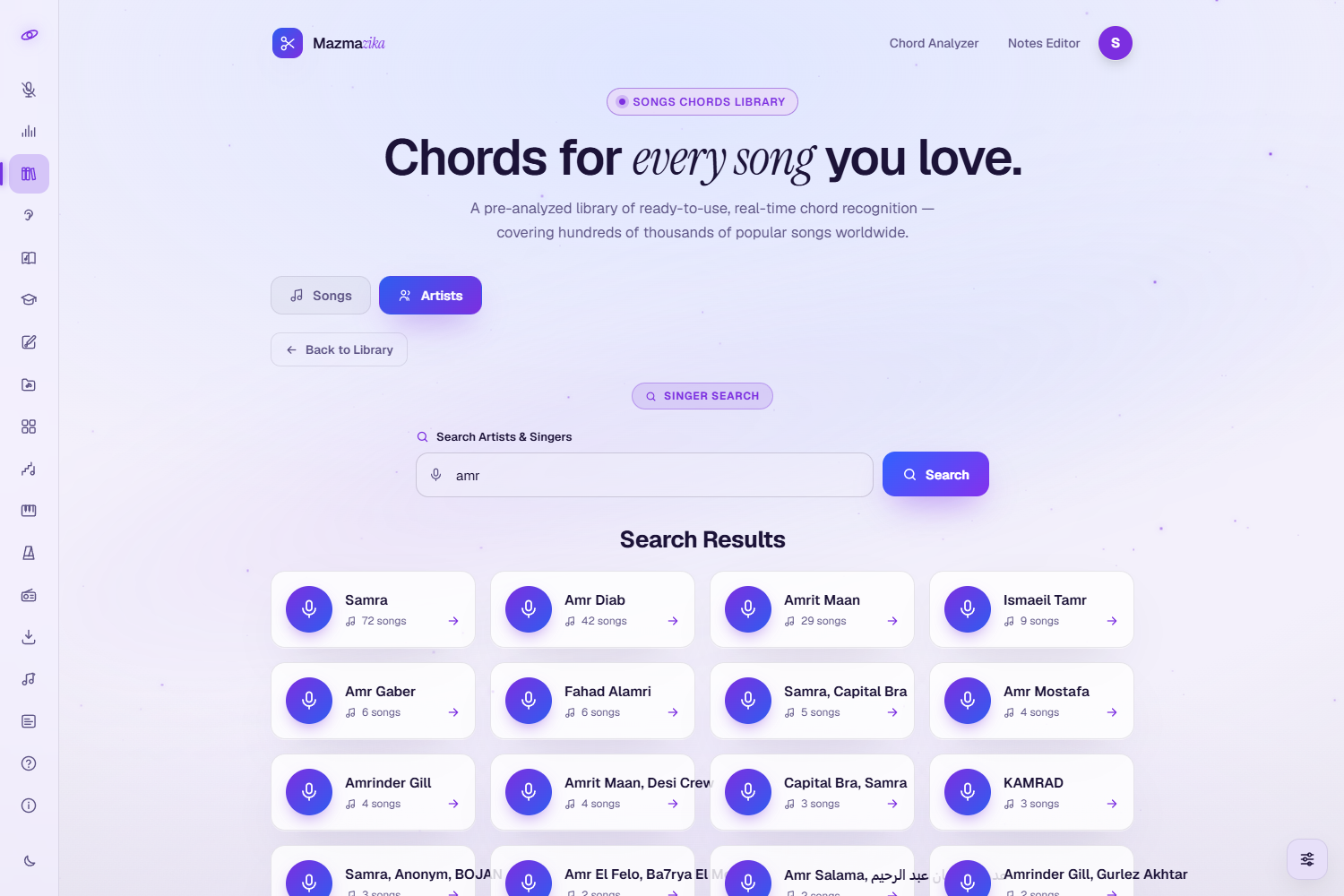
Prefer to browse by musician? Switch to the Artists tab, type an artist or singer name, and press Search. Pick an artist from the results to jump to their analyzed songs.
The interactive song page
This is the heart of the library — a synchronized, play-along chord page.
Play along
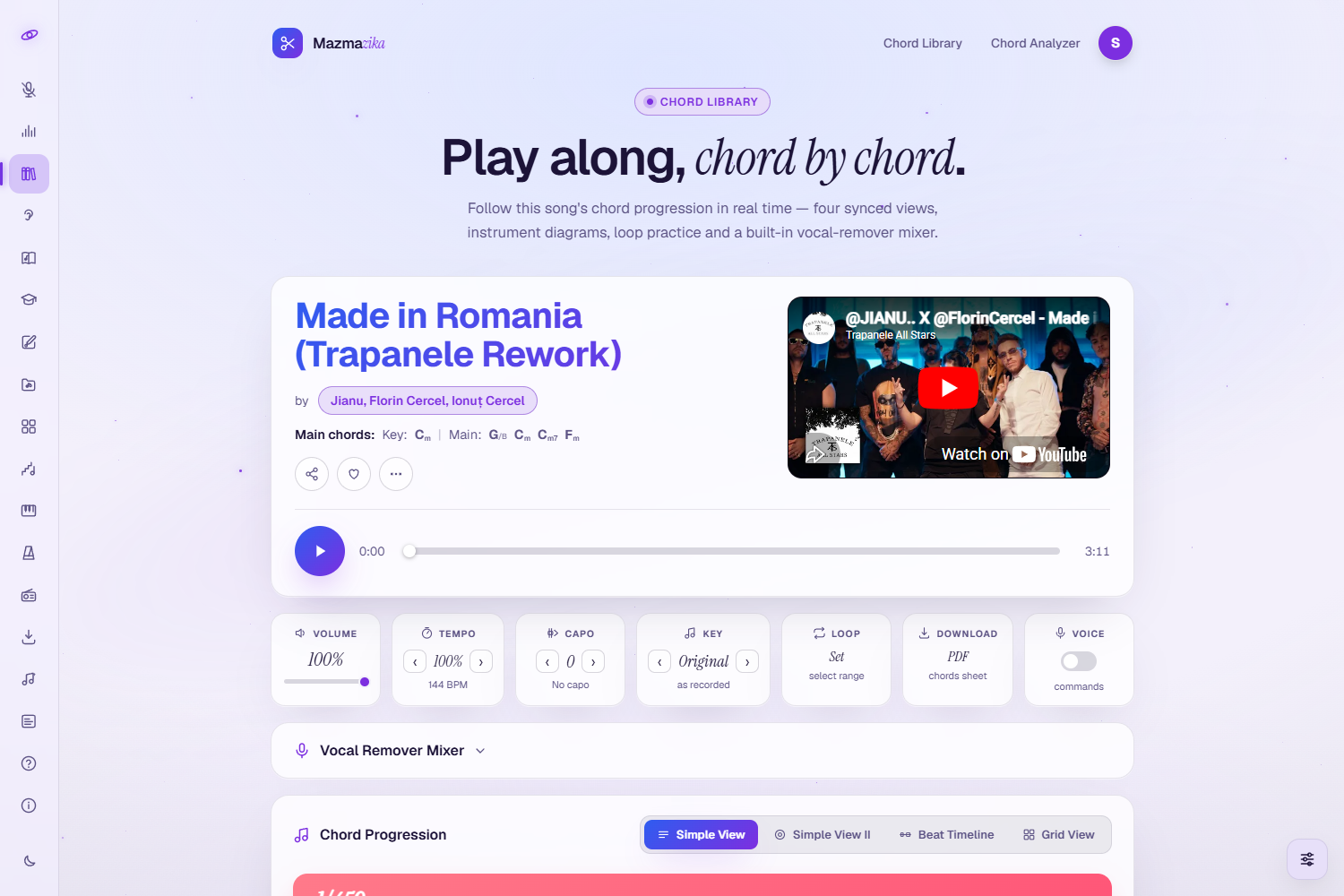
- Synced player — press play and the song's video plays while the chords follow along, highlighting the current chord in real time.
- Key & main chords — the detected key and the song's most-used chords are shown at the top.
- Chord progression — the full progression, shown four ways: Simple View, Simple View II, Beat Timeline and Grid View.
- Chord diagrams — see how to play every chord on Guitar, Ukulele or Piano, with an Overview of all shapes and an Edit tab to correct a chord.
Practice tools (toolbar)
- Volume — set the playback level.
- Tempo — change the speed from half to double (0.5×, 0.75×, 1×, 1.25×, 1.5×, 2×) without changing the pitch, to learn a tricky passage or drill it faster.
- Capo — set a capo from fret 0 to 11 and the chord shapes update to the easier, capo-friendly versions.
- Key — transpose the whole song up or down by up to six semitones to suit your voice or instrument.
- Loop — repeat a section while you practise.
- Download — get a clean, printable PDF chord sheet.
- Voice — the toggle that turns on hands-free voice commands (see below).
See Also
Related songs are suggested at the bottom so you can keep practising without going back to search.
Vocal Remover Mixer
The song page has a full stem mixer built in, so you can split the recording into its separate parts and practise with only the ones you want — mute the singer for a karaoke run, or drop the bass and play the bass line yourself while the chords scroll past. Open the Vocal Remover Mixer card, choose how many parts you want, and press Process:
| Choice | You get | Best for |
|---|---|---|
| 2 Stems | Vocals + Other | Karaoke, or hearing the backing on its own |
| 4 Stems | Vocals + Drums + Bass + Other | Playing along as the bassist or drummer |
| 5 Stems | Vocals + Drums + Bass + Piano + Other | The most detailed split for close study |
Separating takes up to about a minute; once a song has been split, opening it again loads the saved stems instantly. Guitars and other instruments arrive in the Other stem — only vocals, drums, bass and piano get a track of their own.
For each stem you can:
- Fader — drag to set how loud that part is in the mix.
- S (Solo) — hear only that part.
- Mute — silence that part; this is how you make a karaoke or a play-along version.
- Download — save just that one part as an MP3.
- Waveform — shows the audio; click it to jump to that point, and the video and every other stem jump with it.
Once the stems are playing, they take over the sound and the video is muted — but the video is still the clock, so the chords stay in sync and the main play button still runs everything. Because the stems own the audio, the Key transposition is switched off while the mixer is live.
Voice commands
Flip the Voice toggle in the toolbar and you can drive the page by speaking — handy when both hands are on your instrument. The tile reads listening while it's on, and it keeps listening until you switch it off.
| Say | What happens |
|---|---|
| "play" / "stop" | Starts or pauses playback |
| "mixer" | Opens the Vocal Remover Mixer |
| "two stems" / "four stems" / "five stems" | Chooses how many parts to split into |
| "process" | Starts the separation |
| "simple view" / "simple view two" | Switches to Simple View or Simple View II |
| "beat timeline" / "grid" | Switches to Beat Timeline or Grid View |
Speak the commands in English even when you're reading this page in another language — the listener runs in English, so the wording above is what it recognises. It needs a browser with speech recognition (Chrome or Edge); anywhere else the toggle reports that voice isn't supported and switches itself back off.
Free vs. Premium
- Browsing, searching and viewing chords & diagrams are free, with no sign-in and no limit on how many songs you open — library pages are prepared in advance, so they cost nothing to serve.
- Premium (subscription) unlocks the tools you play with: Tempo, Key, Capo, Loop, PDF download, the Vocal Remover Mixer and voice commands. Without it those tiles carry a small lock, and touching one opens an upgrade panel instead.
Use cases
- Practice & learning — play along with real songs on guitar, piano or any chordal instrument.
- Cover performance — learn a song's exact progression to perform it.
- Songwriting — study the harmony of songs you love for inspiration.
- Teaching — use printable sheets and synchronized playback in lessons.
Tips
- Slow it down with Tempo to 75% when learning a new progression, then work back up to full speed.
- Use Capo to get simpler open-chord shapes for hard keys.
- Loop the chorus to drill the part you find hardest.
- Mute your own instrument in the mixer, then play its part yourself over the rest of the band.
- Turn on Voice before you pick up your instrument so you can loop, split and restart without putting it down.
- Print the PDF and mark your own fingerings and rhythm notes.
Can't find your song?
If a song isn't in the library yet, analyze it yourself with the Chord Analyzer (paste a link or upload the audio) — your analysis opens on the same play-along page.
Troubleshooting
- "Premium feature"? Tempo, Key, Capo, Loop, PDF, the mixer and voice commands need a subscription; browsing and viewing chords stay free.
- Voice isn't supported? Speech recognition only works in some browsers — try Chrome or Edge, and allow the microphone when your browser asks.
- Voice on but nothing happens? The commands are recognised in English, so say them as written in the table above.
- The mixer is taking a while? Splitting a track can take up to a minute the first time. Leave the page open; afterwards the stems load instantly.
- No video / no sound? Click the player once (browsers only start media after you interact) and check your device volume.
- Chords look off for your instrument? Use Key to transpose or Capo to get friendlier shapes, or fix a single chord with the diagrams' Edit tab.
Related tools
Analyze your own songs with the Chord Analyzer, split a track into stems on its own page with the Vocal Remover, or keep time with the Metronome.